
5 Ways to Improve Print Quality
Before blaming the printer, check the driver, file, paper, cleaning and worn parts
If you want to improve print quality, do not immediately assume the printer or photocopier needs replacing. The driver, source document, paper, machine settings, cleaning and worn components can all make a noticeable difference to the finished page.
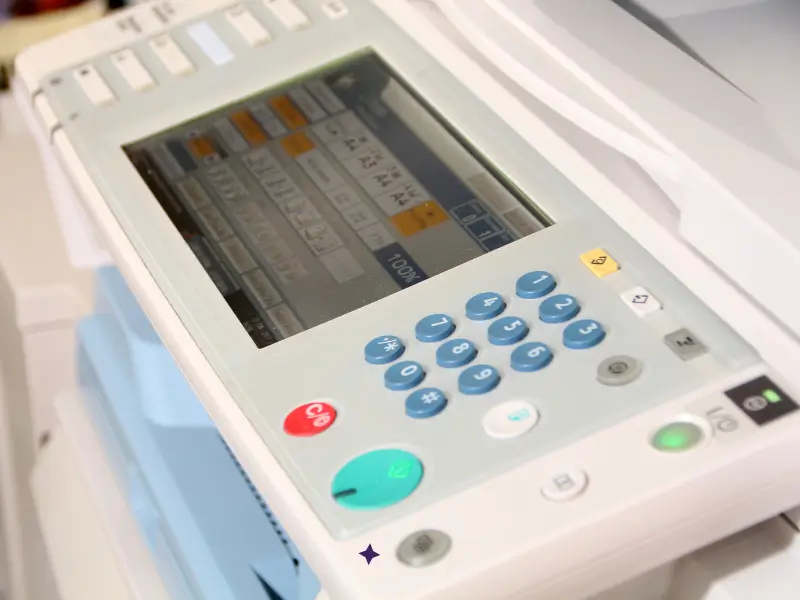
Quick answer: poor print quality is not always a hardware fault. Start by checking the correct manufacturer driver, the resolution and quality of the source file, the paper and media settings, built-in cleaning or calibration routines, and the condition of image-quality components such as drums, transfer units, developer, fusers or print heads.
The complete print path
Good Print Quality Is More Than the Printer Specification
A printer specification might tell you resolution and speed. It does not tell you how a real document will look when the complete print path is taken into account.
Install the Correct Printer Driver
This is one of the easiest opportunities to miss. A printer that appears in Windows and successfully produces a page is not necessarily configured with the best driver for that device.
If you simply search for a printer and click Add device, Windows may install an IPP or other generic driver. That can be useful for basic printing, but it may expose fewer device-specific controls than the manufacturer's full driver.
- print-resolution and image-quality settings;
- colour-management options;
- paper and media types;
- finishing such as stapling or booklet making;
- secure print and user authentication;
- device-specific tray and accessory settings; and
- advanced graphics or PDF handling.
PCL Drivers
PCL is widely used for normal office printing and can be an excellent choice for everyday business documents. Exact functionality varies by manufacturer, model and operating system.
PostScript Drivers
PostScript can be useful with graphics, PDFs and applications that rely heavily on page rendering. It is not automatically better for every document or every printer.
The important point: do not assume that because the computer can print, the printer is set up properly. Check the manufacturer-supported drivers for the exact model and choose the one that suits the applications and features being used.
Check the Quality of the Original File
A printer cannot recreate detail that is missing from the original document.
Images & Logos
Low-resolution images can become soft, pixelated or jagged when enlarged. Use the best original artwork available rather than a small image copied from a website or screenshot.
PDFs & Compression
Heavy compression can remove detail before the document ever reaches the printer. Export important documents at a quality suitable for print rather than screen viewing alone.
Scanned Documents
If the source is a scan, start with a suitable scan resolution, clean original and sensible file format. A poor scan limits the quality of every copy printed from it.
Increasing the printer's resolution cannot restore information that was already lost from the original file. Improve the source first, then use the printer's quality settings.
Use the Right Paper and Media Settings
GSM matters, but it is only part of the story. Paper surface, coating, brightness, whiteness, moisture and how the sheet accepts toner or ink can all change the finished result.
Put the wrong paper into a printer, or tell the printer the wrong media type, and you can see differences in colour, sharpness, density, solid fills, photographs and duplex quality.
1200 × 1200 dpi Does Not Mean Identical Output
Two machines can quote the same nominal print resolution and still produce noticeably different results. The print engine, toner or ink, image processing, colour management, calibration, driver and paper all influence what reaches the page.
Some Colours Are Much Harder Than Others
Certain purples, subtle gradients and human skin tones can expose differences between devices very quickly. If accurate or attractive colour matters, test your own documents on the machine rather than relying on the specification sheet alone.
If colour accuracy is business-critical, ask the supplier to print representative files on the actual proposed device and paper. A real output sample can tell you more than a headline dpi figure.
Run the Correct Cleaning and Calibration Process
If a printer produced good-quality output when it was installed but the quality has gradually deteriorated, maintenance should be one of the first things you check.
Inkjet Maintenance
Depending on the model, maintenance may include nozzle checks, print-head cleaning, alignment or other manufacturer routines. Partially blocked nozzles can cause missing colours, banding or inconsistent output.
Toner-Based Maintenance
Multifunction photocopiers may include colour calibration, registration adjustment, drum or transfer cleaning and other image-quality routines. Some are automatic; others require a user or engineer.
Use the maintenance process intended for the exact model. Repeatedly running cleaning cycles without diagnosing the cause can waste consumables, particularly on inkjet equipment.
Check Whether Image-Quality Parts Are Worn or Due for Maintenance
A printer or photocopier is a mechanical system. Components wear, and some of those components have a direct effect on the quality of the image reaching the page.
Toner / Laser Components
Depending on the machine, drums, developer units, transfer belts, transfer rollers, fusers and imaging units can all affect image quality as they wear or become contaminated.
Inkjet Components
Print heads, maintenance assemblies and ink-delivery components can affect line quality, colour consistency and nozzle performance, depending on the printer design.
Typical Symptoms
Lines, bands, faded areas, uneven colour, repeated marks, poor registration, inconsistent density or toner that is not fixing correctly can all point towards maintenance or worn parts.
Check the maintenance information for the exact model rather than replacing parts by guesswork. Some items are normal consumables; others should be diagnosed and replaced by an engineer.
What we see in real offices
Poor Print Quality Does Not Always Mean You Need a New Machine
We regularly see image-quality issues caused by setup, media, calibration or service parts rather than the core printer being unsuitable.
At Camelott®, we configure business photocopiers around the people and documents using them. That can include the correct drivers, print settings, scanning setup, paper settings, user training and ongoing maintenance.
Under an appropriate Camelott® managed print or service arrangement, compatible equipment can provide toner and meter information, while parts, labour and engineer support are handled under the agreed service plan. If print quality drops, the aim is to diagnose the cause and return the machine to good output rather than automatically recommending replacement.
The short version
Print Quality Troubleshooting Checklist
Software & Source
- correct manufacturer driver installed;
- PCL or PostScript chosen appropriately;
- source image or document is good quality;
- PDF has not been over-compressed; and
- scan resolution is appropriate for the intended output.
Printer & Media
- correct paper and media setting selected;
- cleaning or calibration routine completed;
- consumable life checked;
- worn parts investigated; and
- representative test pages compared before replacing the machine.
Common questions
Improve Print Quality FAQs
Why is my printer producing poor-quality prints?
Can the wrong print driver reduce print quality?
Is PostScript better than PCL for print quality?
Why does a 1200 × 1200 dpi printer still produce different colour to another printer?
Can changing paper improve print quality?
Should I replace my printer if the quality has deteriorated?
Related Camelott® guides
Improve the Whole Print Setup
Still Getting Poor-Quality Prints?
If your office printer or photocopier is no longer producing the quality it used to, Camelott® can help check the setup, drivers, paper, cleaning, maintenance and equipment condition before you spend money replacing the machine.
Driver names, maintenance routines, supported media and component life vary by manufacturer, model, configuration and operating system. Follow the manufacturer's documentation for the specific device or ask a qualified engineer where diagnosis is required.