
Office Printer Cost CalculatorCompare Your Five-Year Costs
Our office printer cost calculator helps you compare what an office printer could really cost over five years. Choose a manufacturer and model, enter your monthly mono and colour volumes, and compare the machine, consumables, support and estimated running costs with a Camelott® managed print option.
- Five-year TCO comparison
- Live printer model database
- Mono and colour volume inputs
- Clear cost assumptions
Estimates depend on the model data and the volumes and additional costs entered. Use the result as a comparison guide rather than a guaranteed saving.
Office printer five-year cost calculator
Colour cost data is not available for this model, so colour volume has been set to zero.
Compare Five-Year Printer Costs
How this tool helps businesses
- Choose an office printer model and see an estimated five-year total cost using the stored hardware and running-cost data.
- Set your actual mono and colour volumes rather than comparing printers on headline purchase price alone.
- Compare the estimated retail five-year TCO with the Camelott® managed print calculation at the same volumes.
How Managed Print Changes the Cost
Compare equipment, supplies and support
An office printer can have a low purchase price but higher consumable, support and administration costs over time. Camelott® managed print combines the agreed equipment, consumables and support into a clearer cost model.
Select a manufacturer and model above to start the comparison.
Selected printer
Typical retail purchase — five-year TCO breakdown
- Hardware Purchase Price
- £0
- Monthly Supplies Cost
- £0
- Mono running cost
- £0
- Colour running cost
- £0
- 5-Year Supplies Total
- £0
- Consumable Delivery / Admin
- £0 / 5yr
- Service & Callouts Outside Warranty
- £0 / 5yr
Camelott® Comparison
Included with Camelott®
- 5 year onsite warranty✓ Included
- Free delivery✓ Included
- Free setup for printing and copying✓ Included
- Free training✓ Included
- Includes parts✓ Included
- Includes toner/ink✓ Included
- No consumable delivery cost✓ Included
- Free management software✓ Included
- Free telephone support✓ Included
No commitment required. Your selected machine and print volumes are included with the enquiry so we can review the comparison with you.
Request Your Photocopier Quote
Send the selected printer and print volumes to Camelott® for a five-year cost review.
Update Printer Fleet
Upload the fleet CSV, check the staged record count, then deploy it to the Camelott REST endpoint.
Awaiting CSV file…
Office printer comparison: the infrastructure matrix
An office printer comparison should assess more than purchase price and pages per minute. Compare print volume, A3 or A4 capability, colour or mono output, scanning, cloud workflows, network compatibility, security, service support and total cost of ownership before choosing a machine. Use the guide below to evaluate the equipment, its setup and its long-term operating cost.
01 Modern Workplace: Apps & Authentication (Microsoft 365 + Google)
Why scan to email can stop working
Many offices still rely on scan to email. Microsoft 365 and Google Workspace security requirements have moved away from many older username-and-password workflows, while IT teams increasingly enforce MFA and tighter access policies.
Modern authentication: OAuth 2.0 vs stored passwords
- Legacy username/password workflows: can fail when passwords change or the authentication method is no longer permitted.
- OAuth 2.0 and modern authentication: can provide a more resilient supported route where the device or connector supports it.
- Alternative relays and connectors: some environments use approved SMTP relay or application connectors rather than storing a mailbox password on the device.
App-based scanning
Instead of attaching every scan to an email, modern workflows can send documents directly to supported applications:
- SharePoint: scan into a library or project folder.
- OneDrive: scan into a user’s workspace for sharing.
- Exchange connectors: deliver without relying on older SMTP credentials.
- Google Drive and Shared Drives: scan into appropriate team locations.
02 Scanning: Speed, OCR, Compression & Reliability
How the document feeder affects duplex speed and reliability
| Mechanism | How it works | Real-world impact |
|---|---|---|
| RADF (Reversing) | Turns the paper mechanically to scan the second side. | Scans each side in sequence, so two-sided batches are generally slower. |
| Single-Pass Duplex | Two sensors read both sides in one pass. | Faster two-sided scanning with less paper movement—useful for finance, legal, education and archiving. |
OCR: searchable PDFs rather than image-only files
OCR determines whether text inside a scanned PDF can be searched later. Without it, the document may be stored only as page images, making information harder to find and reuse.
Compression: file size without losing readability
Uncompressed scans can be very large. Effective compression keeps documents readable while reducing upload failures, email-size problems and cloud synchronisation time.
03 Business Inkjet vs Laser: Output, Energy and Workload
Business inkjet: lower-heat printing and energy efficiency
- Lower-energy operation: business inkjet does not require a laser fuser to heat every page.
- Fast first-page output: useful where work arrives in frequent short jobs.
- Paper and coverage: check the recommended media and ink coverage for your documents.
- Usage pattern: choose a device designed for the organisation’s monthly workload.
Laser and LED: established output for sustained workloads
Laser and LED devices fuse dry toner to the page and are widely used for predictable business documents, broad media compatibility and sustained workloads. The fusing process uses heat and introduces wear parts such as the fuser assembly.
Paper capacity
Small trays require more frequent refilling. For a shared office printer, tray capacity, media options and paper-feed design can materially affect day-to-day productivity.
04 Network Printer Setup: IP Addressing, Drivers and Reliability
Preventing network printers from appearing offline
Many printers initially use DHCP, which assigns an IP address automatically. Following a router restart or network change, the device may receive a different address. If a print queue still points to the old address, the network printer may appear offline.
Drivers: PCL, PostScript and application compatibility
- PCL: widely used for Windows and Microsoft Office documents.
- PostScript: useful for macOS, Adobe and graphics-led workflows where supported.
- Incorrect driver symptoms: garbled pages, missing fonts, incorrect colours or layout errors.
Correct setup unlocks functionality
A capable machine may still be poorly used if scan destinations, user authentication, secure release, address books, application connectors, firmware and print queues have not been configured correctly.
05 Print Security: Data, Identity, Secure Release & Audit Trails
Printers are network endpoints
A modern office printer can store jobs, communicate with cloud services and operate inside the organisation’s network. Security should therefore be considered when selecting and configuring the device.
Secure-printing features to compare
- Encryption in transit: TLS communication where supported.
- Encryption at rest: relevant for devices containing storage.
- User authentication: PIN, card or login-based job release.
- Pull printing: holds documents until the user releases them.
- Audit information: appropriate usage records where required.
06 TCO & Hidden Costs: Parts, Consumables, Administration and Cash Flow
A low purchase price can conceal high running costs
Some printers have a low initial price but comparatively expensive consumables and replacement parts. Calculate the likely lifetime cost rather than comparing only the purchase price.
Wear parts to include in the calculation
- Imaging drums where these are separate consumables.
- Fuser units on laser and LED devices.
- Transfer belts, rollers and developers where applicable.
- Waste-toner containers on relevant machines.
Colour and mono costs
Colour printing uses several consumables and may involve multiple imaging components. Compare the mono and colour cost per page and check how a colour page is defined under any service agreement.
Consumable stock, cash flow and administration
- Stock cost: capital tied up in spare consumables.
- Administration: ordering, checking compatibility and chasing deliveries.
- Operational risk: running out or ordering the wrong product.
07 Duty Cycle and Recommended Volume: Sizing for Reliability
Maximum duty cycle is not the recommended operating volume
Maximum monthly duty cycle is generally an upper operating limit rather than a suitable routine target. Sustained use at that level can increase component wear.
Recommended monthly volume is the more useful sizing figure
Choose equipment around normal monthly output with sensible headroom for growth and seasonal peaks. An underspecified machine may experience greater wear and require more frequent attention.
Reliability involves the complete paper path
Pickup rollers, separation pads, paper-path design and service access affect how consistently the device performs under its expected workload.
08 Print Quality: Resolution, Sharpness and Accurate Colour
DPI is not the only measure of quality
Real-world clarity also depends on dot control, toner or ink behaviour, paper quality and how the machine reproduces edges, gradients and halftones.
Accurate colour reproduction
Organisations printing logos or branded documents should consider calibration, colour management, consistency and the media types they expect to use.
09 Buy vs Lease vs Rent vs Managed Print Service
How the commercial options differ
The same equipment can produce a very different financial result depending on how it is acquired and supported. Compare equipment cost, service, consumables, contract length and flexibility separately.
| Route | Upfront cost | Ongoing cost | Parts and service | Typical fit |
|---|---|---|---|---|
| Purchase | Higher | Variable | Separate unless covered | Ownership and longer-term use |
| Office Printer Lease | Lower | Fixed equipment payments | Normally a separate agreement | Spreading equipment cost over an agreed term |
| Office Printer Rental | Usually low | Agreed rental | Depends on the rental package | Short-term, project or temporary requirements |
| Managed Print Service | Depends on equipment | Service and usage charges | Defined within the service scope | Cost control, supplies and technical support |
10 Office Printer Makes Available from Camelott®
Compare the machine around the requirement
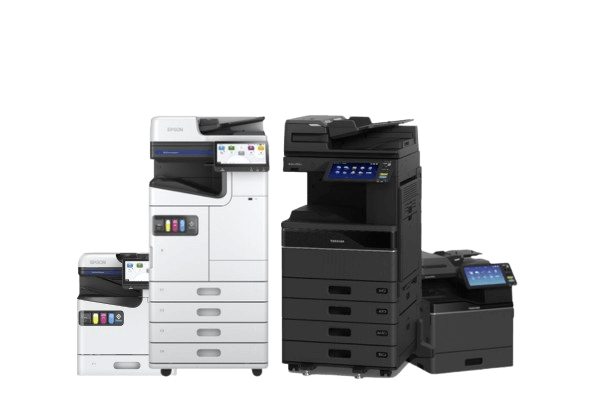
Camelott® supplies office printers, multifunction printers and photocopiers from several manufacturers. The right choice depends on print volume, paper size, colour requirements, scanning workflow, security, available space and the required service arrangement.
- Toshiba e-STUDIO: A3 and A4 colour or mono multifunction systems for offices, schools and larger workgroups.
- Katun Arivia: Colour and mono office photocopiers designed for dependable shared printing and scanning.
- Epson WorkForce Enterprise: Business inkjet systems suited to organisations prioritising productive output and lower-energy printing.
- Konica Minolta bizhub: Flexible office multifunction devices with print, scan, workflow and finishing options.
Office printer buyer checklist
Use this checklist when comparing an office printer, multifunction printer, printer-scanner-copier or office photocopier where reliability and support matter.
Apps and Scanning
- Support for SharePoint, OneDrive or Google Drive where required
- Modern authentication or OAuth support where available
- Single-pass duplex document feeder for frequent scanning
- Built-in OCR or a clearly defined OCR workflow
Networking and Setup
- Static IP address or DHCP reservation planned
- Correct PCL or PostScript driver selected
- Firmware-update responsibilities understood
- Setup documented to simplify future network changes
Cost and TCO
- Mono and colour cost per page understood
- Drums, fusers, belts and other wear parts included in calculations
- Consumable-ordering and administration time considered
- Service response and likely downtime considered
Security and Control
- Secure print release available where sensitive data is handled
- Suitable usage or audit information available if required
- Encryption features understood
- Appropriate PIN, card or login-based access controls
Office printer comparison FAQs
What should I compare when choosing an office printer?
Compare typical monthly print volume, A3 or A4 capability, colour or mono output, scanning speed, document-feeder design, cloud integration, security, paper capacity, service support and total cost per page. The cheapest purchase price is not always the lowest long-term cost.
What is the difference between an office printer and a photocopier?
Both may print, copy and scan. Office printer often describes an A4 desktop or workgroup device, while photocopier commonly refers to a larger multifunction system with higher paper capacity, A3 support, finishing and heavier-duty service options.
Should a business choose inkjet or laser?
Choose by workload rather than technology alone. Business inkjet can provide productive, lower-energy output, while laser and LED devices provide established dry-toner performance across many office applications. Compare the exact model, media, coverage, service and total running cost.
Is leasing an office printer the same as managed print?
No. Leasing finances the equipment over an agreed term. A managed print service covers an agreed combination of maintenance, toner, monitoring, cost-per-copy billing and technical support. The two arrangements can work together but should be shown separately.
Need help choosing? Get an office photocopier quote
Tell Camelott® how your organisation prints and scans. We can compare suitable Toshiba, Katun Arivia, Epson and Konica Minolta options and explain the purchase, leasing, rental and managed-print costs clearly.
Problems the right office printer supplier should solve
Common office printer and MFP problems
These are five recurring cost, reliability, workflow and security issues Camelott® identifies when reviewing business print environments.
Unclear and rising print costs
Equipment payments, increasing cost-per-copy rates, minimum billing, consumables and support charges can make the true cost difficult to see. Compare the complete monthly and five-year cost rather than only the machine price or headline rental.
Scan-to-email and cloud workflow failures
Microsoft 365, Google Workspace, SMTP and authentication changes can disrupt older scanning configurations. The device, network, user access and mail or cloud workflow need to be diagnosed together.
Recurring downtime and slow support
Repeated paper jams, recurring faults and delayed parts reduce productivity. The underlying cause may be the machine, media, configuration or an unsuitable workload, so persistent failures require proper diagnosis.
Unclear ownership between copier and IT support
Printer faults often involve drivers, print queues, networking, authentication or scanning as well as the hardware. Clear support ownership prevents users being passed repeatedly between suppliers.
Outdated print and document security
Older or poorly configured devices can create avoidable document and network risks. Secure print release, user authentication, encryption, firmware management and unnecessary network protocols should be reviewed.
A structured office printer comparison should address these issues before a machine is selected. Explore Camelott® managed print services or request a photocopier quote.
Frequently Asked Questions
Straight answers about what the calculator compares, how the figures are worked out and when you may need a full quotation.
What is the difference between the two calculators?
The Office Printer Comparison TCO Tool is for research. It compares the estimated five-year cost of buying an off-the-shelf business printer with a Camelott® managed-print alternative at your selected print volumes.
The Quote Audit Tool is for benchmarking an existing contract or competitor quotation. Enter the actual lease and CPC figures to compare the quoted costs against Camelott® benchmarks.
What specifically is the TCO tool comparing?
The tool uses the selected printer's hardware price, mono and colour running costs, warranty position and any service or consumable-delivery costs you enter, then compares the resulting five-year total with the Camelott® managed-print calculation.
Note: Optional accessories, specialist finishing, unusual media requirements, additional software or site-specific work can change a final proposal.
Use the result as a comparison guide. For a precise proposal, request a full quote so the equipment, print volumes, service requirement and workflow can be checked properly.
How do I use the Office Printer Comparison TCO tool?
- Select a manufacturer and model.
- Set your estimated monthly mono and colour volumes.
- Add any applicable service or consumable-delivery costs.
- Review the estimated five-year traditional-purchase TCO against the Camelott® comparison.
How does the Quote Audit Tool work?
Enter the lease or rental cost, mono CPC, colour CPC and relevant usage figures from your existing agreement or new quotation. The tool compares those figures with the Camelott® benchmark calculation so you can see whether the quoted arrangement warrants a closer review.
If I request a comparison or quote, am I committed to buy?
No. Submitting your details requests a comparison or follow-up quotation. It does not commit you to purchase, lease or enter into a managed-print agreement. Any formal proposal should still confirm the exact equipment, specification, service scope and commercial terms.