Print beyond the office
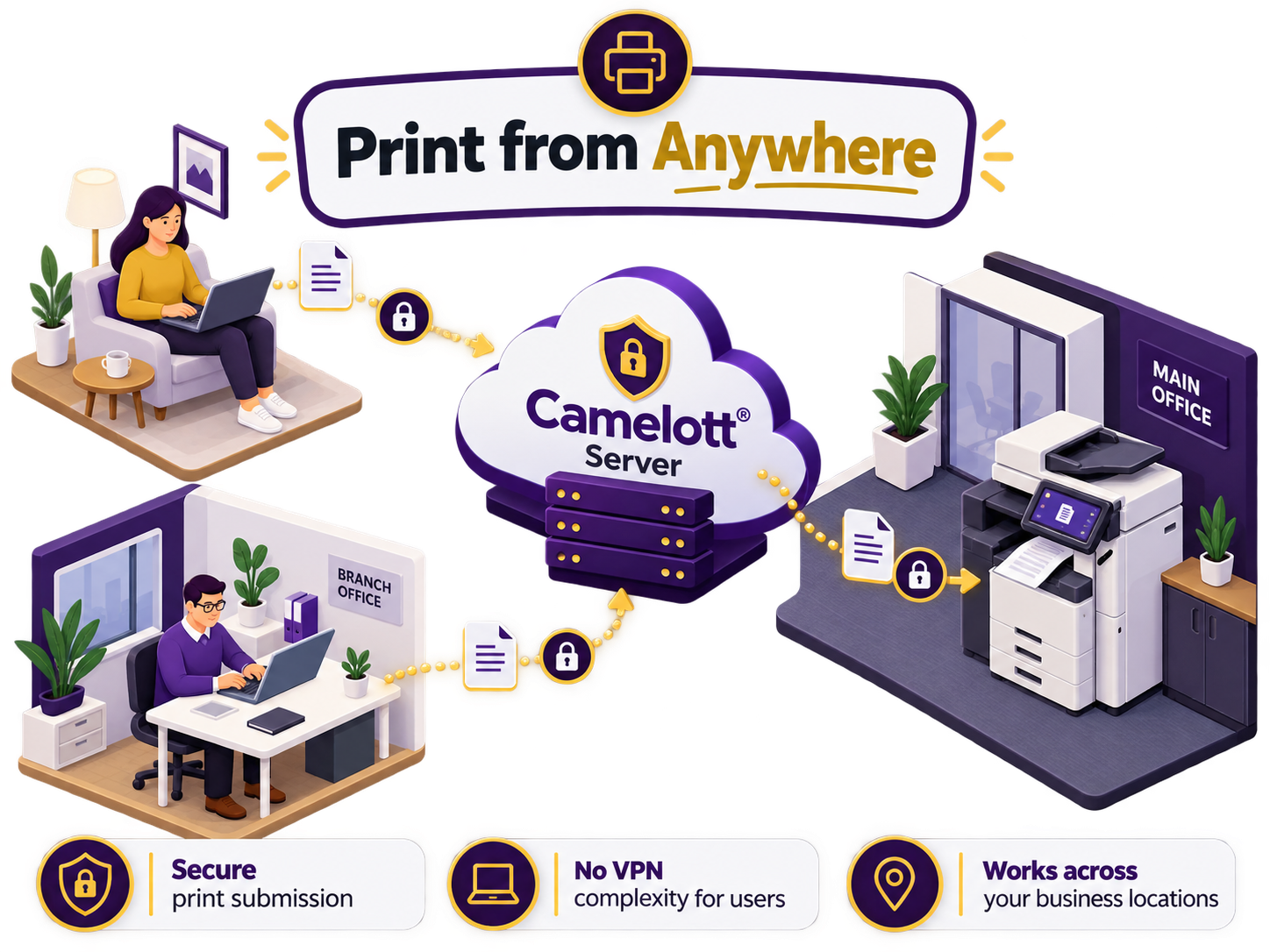
Send work to an authorised office printer while working from home, another site or out on the road.

Print securely from anywhere. Scan straight to SharePoint or Google Drive. Keep important jobs moving when printers get busy. We make printing and scanning work around your business.
You don't need to know which app, printer or server you need. Tell us what takes too long, what keeps going wrong, or what you'd like your staff to be able to do. We'll bring the right pieces together.
Send work to an authorised office printer while working from home, another site or out on the road.
Put paperwork into SharePoint, OneDrive or Google Drive without emailing it to yourself first.
Organise print queues, assign suitable devices and create backup routes for busy departments.
Use appropriate authentication, print-release options and permissions for different teams.
Use OCR and selected document-recognition applications to reduce manual naming and filing.
One team can help choose equipment, configure printing and scanning, and support the setup.
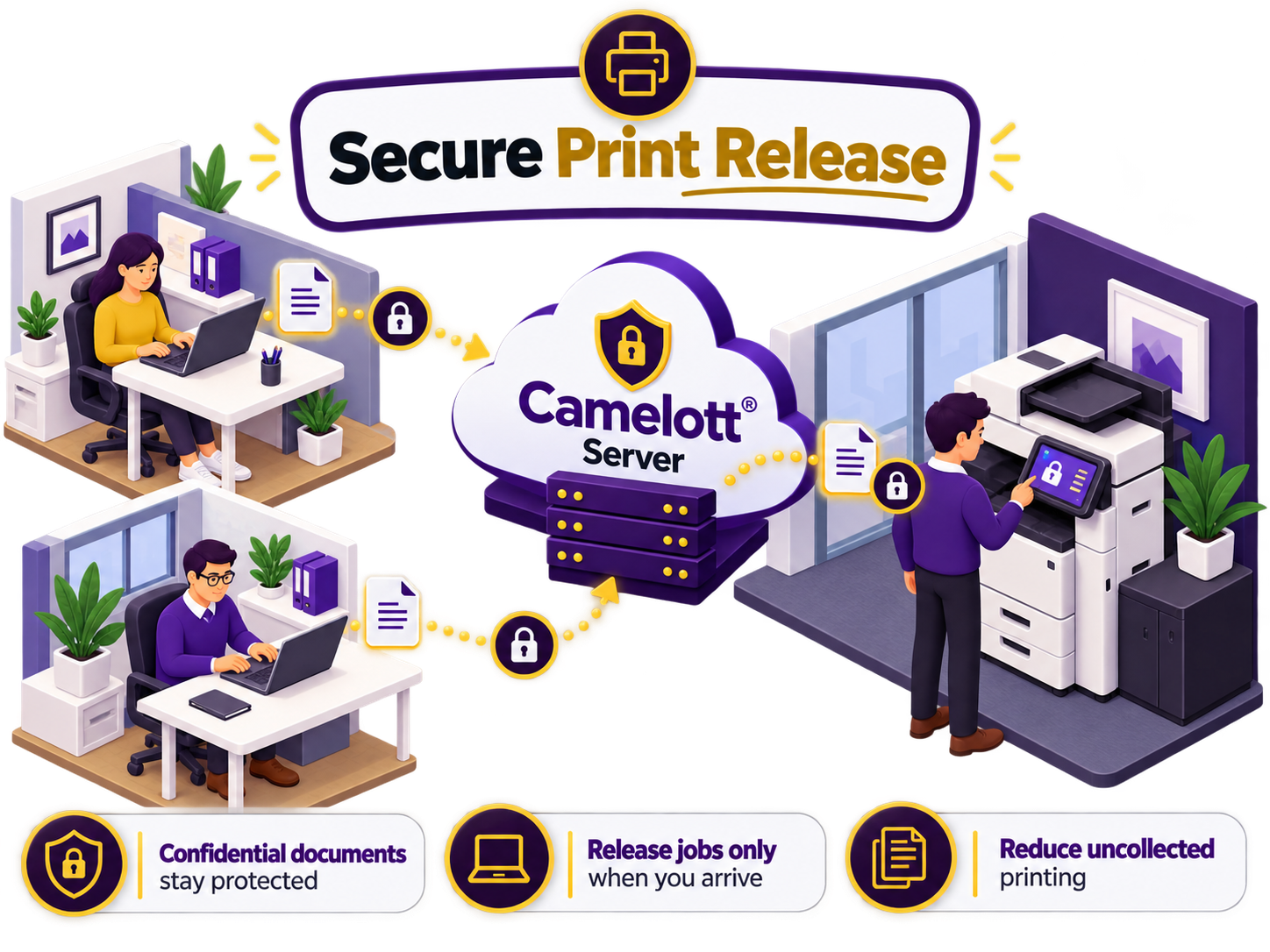
Printing shouldn't stop being straightforward when someone leaves the building, changes desks or works across more than one site. The Camelott® Server helps us give customers one organised print environment.
A member of staff can send a document securely to an authorised company queue without sitting at a desk inside the office. We configure the workflow to suit where your team works and where the output is needed.
Example: A director working from home sends a signed document to the main office printer.
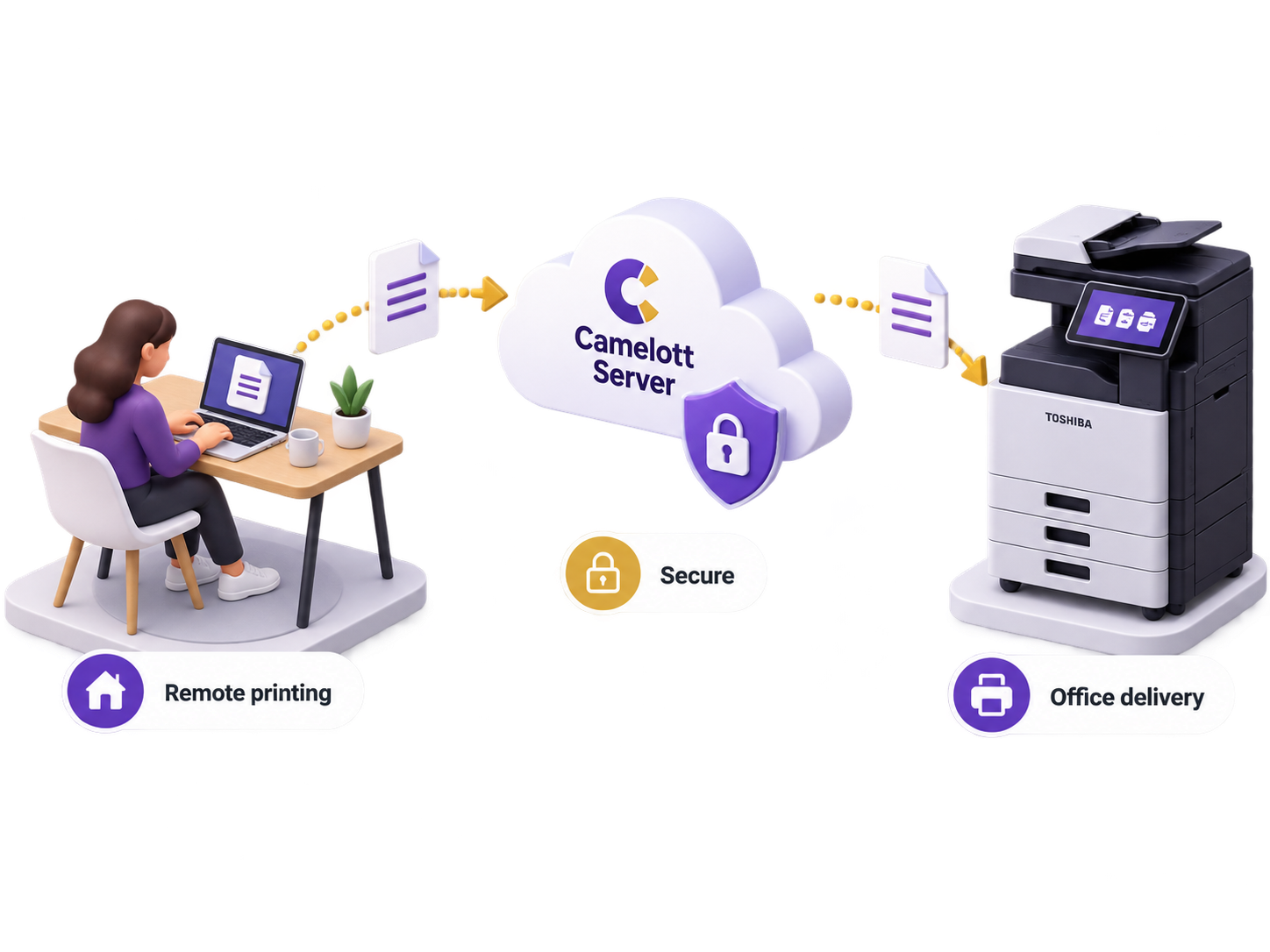
Accounts, sales, schools and production teams do not all print in the same way. We can organise their printer access so each department has an agreed route instead of a confusing collection of machine names.
Example: Accounts sees an approved accounts queue while the warehouse has a separate production queue.
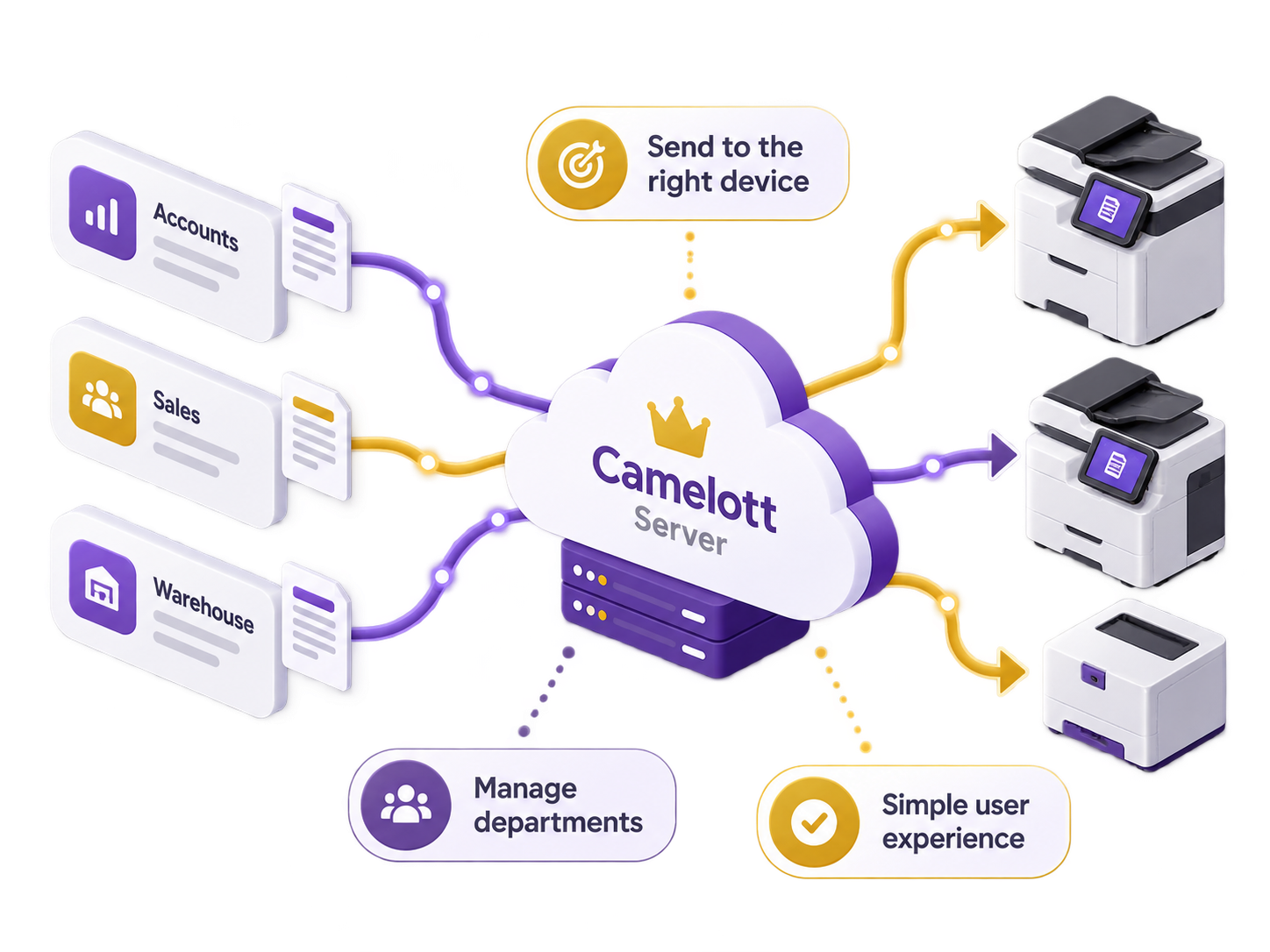
When you rely on high-volume printing, we can design primary and secondary printer arrangements. The objective is to spread work sensibly and give teams an alternative when a machine is busy or unavailable.
Example: A manufacturer uses its primary mono devices first and keeps prepared backup devices available for overflow.
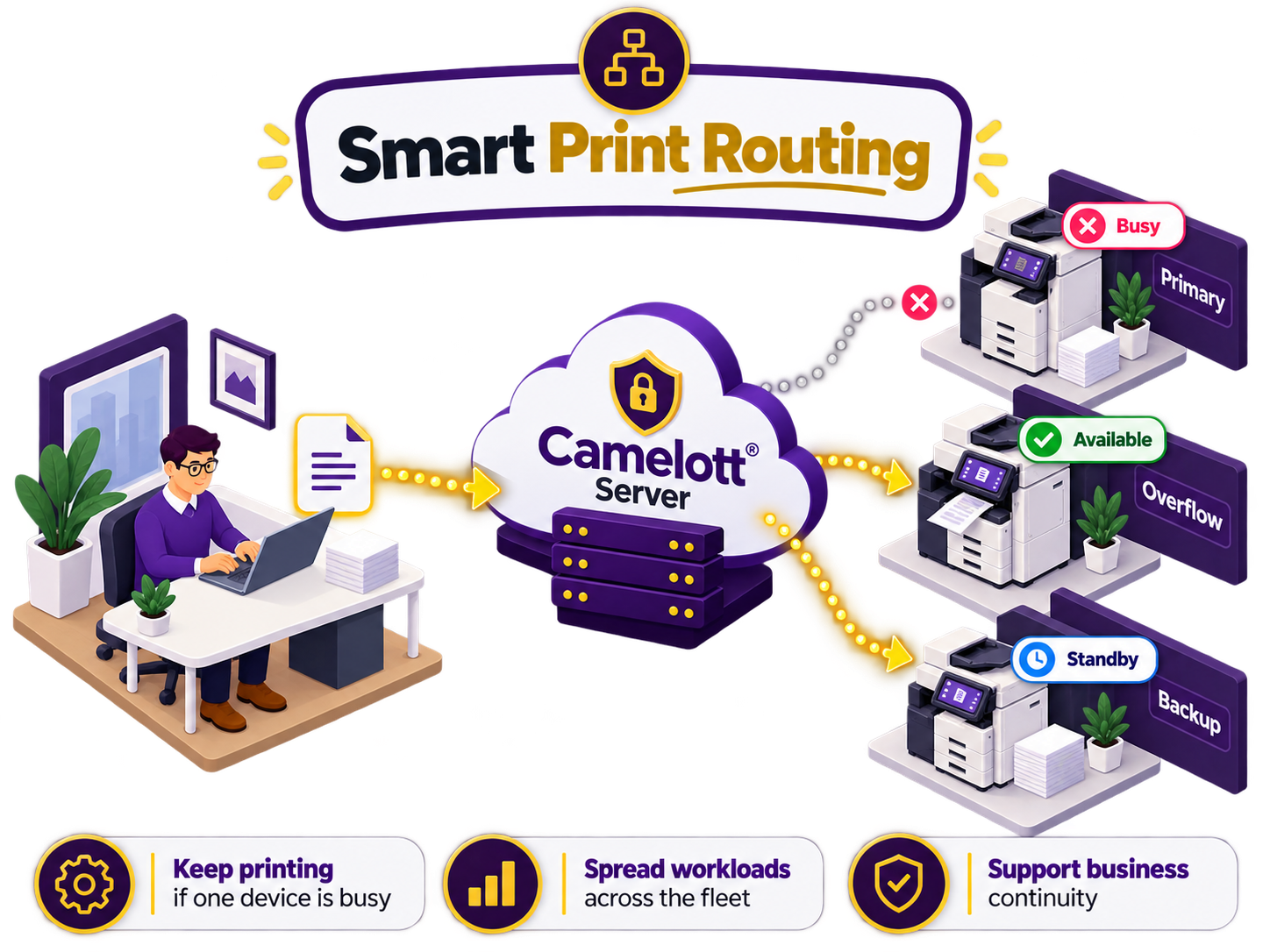
Sensitive work should not sit openly on a shared printer. Where supported by the chosen machine and print-management configuration, secure release can hold jobs until an authorised user arrives.
Example: An HR manager releases employee paperwork only when standing at the printer.
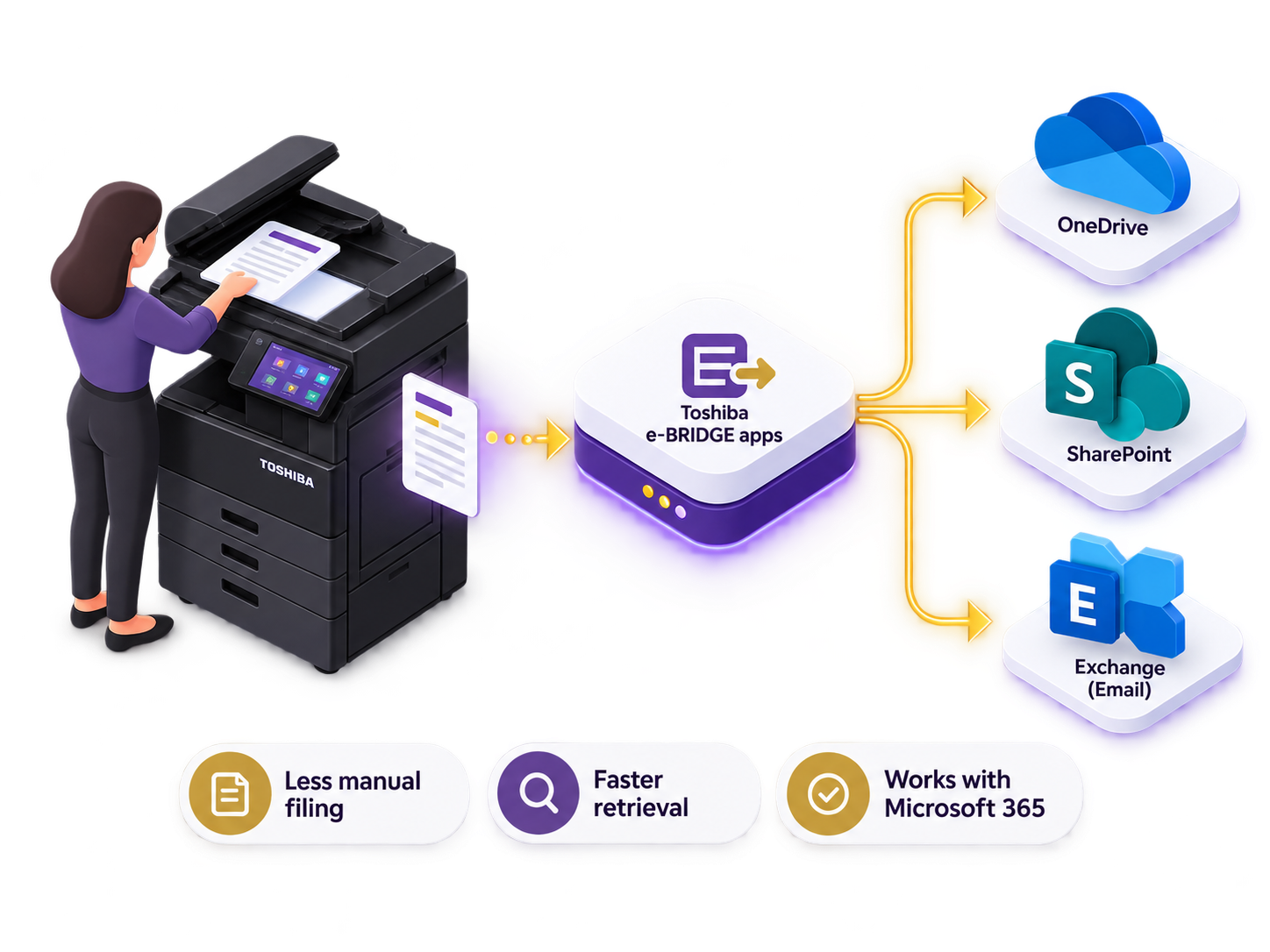
For many businesses, the problem isn't scanning a document. It's what happens afterwards: emailing it, downloading it, renaming it and finding the right folder. On compatible Toshiba e-STUDIO devices, e-BRIDGE Plus apps can take you directly to the service your team already uses.
Staff can choose the appropriate authorised destination on the Toshiba touchscreen. A signed contract can go into the shared project library, or a document can go into a user’s OneDrive for Business.
Example: A property team scans a signed agreement directly to its SharePoint job folder.
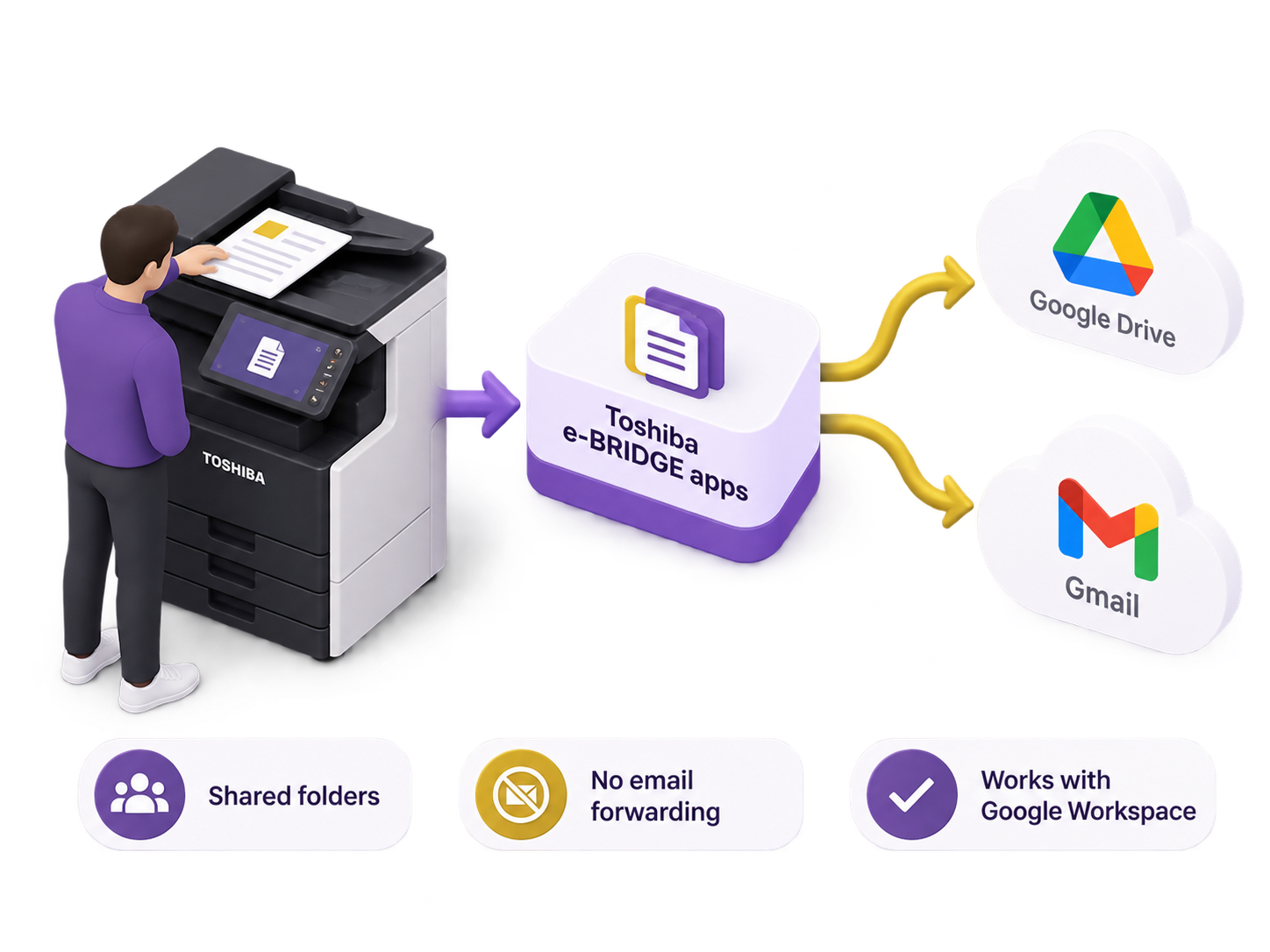
For schools and businesses using Google Workspace, compatible Toshiba apps let authorised users scan straight to Google Drive and work with the appropriate folders from the machine.
Example: A school office scans an approved administrative form into its authorised Google Drive folder.
Still want scan-to-email? Of course. We also configure ordinary scan-to-email, scan-to-folder and standard network workflows where these are the sensible choice. Microsoft 365 and Google integrations are not mandatory for every customer.
If you only send an occasional scan to another person, email is still useful. When people scan the same type of paperwork daily, filing it directly in SharePoint or another library can save repeated work.
Example: A supplier invoice is scanned directly into the accounts library instead of moving through two inboxes.
When documents keep piling up, small changes to the capture process can make a big difference. With suitable Toshiba OCR, barcode and capture applications, Camelott® can help make documents easier to search, sort and file.
Optical character recognition (OCR) makes supported scanned documents searchable. Some compatible devices can also create editable office file formats, depending on the equipment and options.
Example: A colleague searches a searchable PDF for an order reference rather than reading every page.
Where paperwork has predictable layouts, references or barcodes, compatible capture applications can recognise selected information and help name or direct files into predetermined destinations.
Example: Delivery notes with reference barcodes can be directed into the agreed document workflow.
Important: OCR, barcode filing and cloud-storage apps are different capabilities. We'll recommend and configure the combination that fits your documents and confirm compatibility before installation.
Good print management should make life easier for staff while giving the business more visibility over access, volumes and costs. We can design this around your departments and the equipment already in use.
Different departments may need different access. Depending on the configured management solution, we can set user or departmental permissions, apply sensible rules and reduce accidental expensive output.
Example: Students have different print permissions from teachers, while finance retains authorised colour access.
Usage information can show which machines and departments are busiest. Combine that with actual equipment and running costs and you can make better decisions at renewal instead of guessing.
Example: A business discovers one small colour printer is doing expensive work a shared device could handle.
Camelott® can help with equipment, drivers, queues, scanning, compatible applications, user setup and ongoing technical support. We look at the complete requirement rather than supplying a box and leaving you to make everything work.
Example: Your team has one point of contact when printing or scanning stops working as expected.
These are example arrangements, not descriptions of a particular customer installation. The combination depends on your devices, business systems, volumes and security requirements.
Scan directly into the accounts SharePoint library, make PDFs searchable and use recognition rules where appropriate.
Google Drive or Microsoft 365 scanning for authorised staff, different printing permissions and confidential output options.
Managed queues for large mono workloads, correctly sized primary equipment and designated additional capacity.
Authorised users print to agreed locations, without asking a colleague to receive and manually print every document.
Use compatible secure print release and shared document libraries with the organisation’s proper access rights.
Choose a destination on the machine, file it in the right cloud folder and spend less time downloading attachments.
We can look at Windows, macOS, Chromebooks, supported mobile devices, Microsoft 365, Google Workspace and compatible Toshiba e-BRIDGE applications. You might already have equipment that can do far more than anyone is using.
Example: A business keeps its existing suitable machines and adds the right scanning destinations.
There's no reason you should have to specify the application before talking to us. We'll assess the job and demonstrate an approach that makes sense for your staff.
Where do documents start, who needs them, and what currently causes frustration?
We review devices, applications, print volumes, existing systems and user access.
We explain how it would work in your environment before proposing an arrangement.
We configure, train and support the agreed printing and scanning setup.
A better workflow doesn't automatically mean new photocopiers. If your existing devices are suitable and can be integrated effectively, we'll tell you. You can also compare equipment and service options on our managed print services page.
That's where we come in. Tell us what you're trying to do, rather than trying to work out the technology first.
Yes. The Camelott® Server can provide authorised remote print submission to suitable office queues. The workflow is configured to your locations, devices and security requirements.
Yes, on compatible Toshiba e-STUDIO machines with the relevant e-BRIDGE Plus apps, licensing and permissions. We can help configure the agreed destination and user access.
Compatible Toshiba e-BRIDGE devices can use the appropriate Google Workspace Google Drive app to scan to authorised cloud folders. Compatibility and licensing should be checked for each machine.
No. For occasional scans, email is often perfectly suitable. We also configure scan-to-folder and cloud destinations when direct filing will save repetitive work.
Yes, with supported OCR and optional recognition features. Searchable PDF, editable file conversion, barcode capture and targeted OCR are not all the same function; we select what your documents require.
We can design managed queues, primary and backup devices and workload arrangements for suitable equipment. The precise routing depends on job type, device capabilities and the agreed configuration.
Secure print-release solutions are available with the right Toshiba or managed print components, including supported authentication methods. We'll check the chosen machines and setup before confirming the release method.
Often, yes. We assess the age, model, firmware, current features and ongoing suitability before recommending replacements. Some optional e-BRIDGE apps require a compatible Toshiba model.
Yes. We can review the requirement and demonstrate or propose a relevant workflow after checking your printers, Microsoft or Google permissions, data handling and connectivity.
Spend less time filing invoices? Print from home? Reduce colour costs? Keep a production department running when a printer is busy? Tell us what you want to achieve. We'll show you how Camelott® can help.
Availability of particular cloud apps, authentication methods, document features and automated routing depends on compatible equipment, software, licences and the agreed configuration. We confirm what is suitable before installation.