
Toshiba e-STUDIO 3025AC
30ppm A3 Colour Photocopier
The Toshiba e-STUDIO 3025AC prints and copies in colour or black and white at up to 30ppm on A4 and 16ppm on A3. It suits shared offices producing regular reports, with optional single-pass scanning and finishing for paper records and assembled packs. Available to buy, lease or rent from Camelott®, with UK-wide service and repair support.
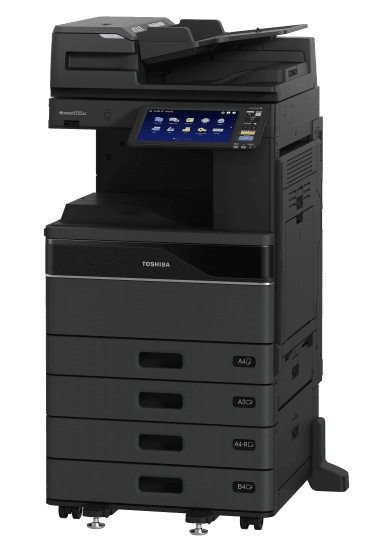
The Toshiba e-STUDIO 3025AC is a 30ppm A3 colour photocopier, printer and scanner. If you are comparing a Toshiba 3025AC photocopier for an office or school, look beyond print speed: its optional 300-sheet scan feeder, 300gsm cassette support and finishing choices can reduce the work around each document. Available to buy, lease or rent from Camelott®, with UK-wide service and repair. The range image shows a configuration with additional paper drawers; the feeder, stand, paper capacity and finishing included in your supply must be confirmed.
Camelott® 360° view
Toshiba 3025AC Photocopier: Where It Earns Its Place
A useful balance for a shared office that does more than print ordinary A4. The 3025AC combines a 30ppm engine with room for different paper stocks, optional batch scanning and an upgrade path for finished documents. It is worth considering when staff regularly prepare reports, digitise files and assemble packs on the same machine.
At this speed, another 30ppm A3 colour device may finish a simple print run in much the same engine time. The more useful differences are how many originals you can load, which tray accepts heavier paper, what the finishing equipment does and how easily scans reach the right destination. Those are the details that can remove repeated handling from your working day.
The optional 300-sheet DSDF is a strength when your files are too large for smaller feeders. That does not make this the fastest scanner in its class: some alternatives advertise higher duplex scan rates. Choose capacity, scan quality, actual batch time and supplied cost together. If most jobs are a handful of A4 pages, a simpler configuration may be sufficient.
Click the part you want to understand
Explore the e-STUDIO 3025AC Part by Part
Select an area to see the specification, what it means in practice, and when it will—or will not—make a meaningful difference.
1. Document feeder & scanning
Load a Larger File in One Batch
Choose between the optional 100-sheet reversing feeder and 300-sheet dual-scan feeder. Neither feeder should be assumed from the model number alone.
Why this is useful
A 300-sheet option can hold a larger batch than the 100–220-sheet feeders advertised on some comparable 30ppm A3 colour machines. For accounts files, signed contracts or pupil records, fewer reloads can be more useful than a faster print engine. Double-feed detection is available with a specific DSDF option; confirm that version if required.
When it may make little difference
A larger feeder is not automatically a faster scanner. Some alternatives publish higher duplex rates, and comparisons must use matching resolution and scan conditions. For small batches, check whether a less expensive configuration with single-pass scanning already covers the work.
2. Touchscreen & workflow
Set Up the Jobs Your Staff Repeat
The 10.1-inch panel runs Toshiba e-BRIDGE Next. Useful setup is about clear destinations, permissions and repeatable tasks, rather than screen size alone.
Why this is useful
A saved scan workflow can help staff send invoices or records to the intended location without repeatedly choosing file settings and destinations. Compatible cloud connectors are useful when your business already works in those services. Set them up around real folders and access rights.
When it may make little difference
If everyone only prints from a computer and scans occasionally to email, extra apps may add little. Similar touchscreens and cloud options exist elsewhere. *Apps, licensing, subscriptions and availability depend on the required configuration.
3. Print engine
30ppm A4, with 16ppm A3 Output
Colour and mono A4 output is rated at up to 30ppm. A3 output is up to 16ppm, so do not apply the A4 figure to larger pages.
Why this is useful
For a shared office producing reports and meeting papers, 30ppm provides useful batch output without choosing the highest-speed engine. A 100-page A4 run represents about 3 minutes 20 seconds of engine time, compared with four minutes at 25ppm.
Where more speed earns its cost
The theoretical saving over 25ppm is only four seconds on ten A4 pages, before processing and first-page effects. Repeated long jobs may justify 45–55ppm, while occasional short jobs may not justify any speed upgrade. These calculations are engine-time illustrations, not guaranteed job completion times.
4. Bypass & specialist media
Keep Occasional Stocks Separate
The 100-sheet bypass handles media you do not normally keep in a cassette. Paper must still meet Toshiba’s supported size, weight and media requirements.
Why this is useful
An occasional certificate, cover or long notice can be printed without emptying the drawer used for everyday A4. The supported banner format gives you another in-house option for suitable notices and signage, with the correct media and settings.
When it may make little difference
Specialist paper support only helps if those jobs occur. The 300gsm limit does not apply to every size or path: banner paper has its own 90–163gsm range, and automatic duplex printing is limited to 256gsm.
5. Main paper drawers
Useful Capacity Before Buying Extra Trays
Two 550-sheet main cassettes and a 100-sheet bypass give 1,200-sheet standard input. Extra drawers and feeders are optional.
Why this is useful
You can keep A4 and A3 ready, or separate ordinary paper from a regularly used heavier stock. Main-drawer support to 300gsm is worth checking against alternatives whose 300gsm headline may apply only to the bypass. It can reduce repeated manual loading for covers and certificates.
When it may make little difference
The 1,200-sheet total includes the bypass; the two main drawers hold 1,100 sheets together. Maximum capacity mainly matters if reloading interrupts real jobs. Do not add large paper feeders just because a brochure offers them.
6. Output & finishing
Choose the Finished Document, Then the Attachment
Compatible options can staple sets, make folded booklets or punch pages for binders. The range machine pictured does not show an external booklet finisher.
Why this is useful
An inner stapler can help with repeated reports without choosing a large external booklet unit. A compatible saddle-stitch finisher is relevant for handbooks and programmes. Hole punching is a separate handling task: if staff regularly prepare binder packs, check the required punch pattern and finisher combination.
When it may make little difference
For a few stapled documents each week, a separate stapler may be enough. *Finishing limits depend on the selected accessory, paper size, weight and job. The 300gsm print capability does not mean a finisher can staple or fold 300gsm at its maximum sheet count.
Photocopier terminology, explained by Bean
Confused by Photocopier Jargon?
Bean explains the terms without the technical waffle. Here is what the specifications mean for your working day.

- PPM — Pages Per Minute
- Printer PPM measures pages produced per minute once the print engine is running, under specified test conditions. The difference between 30ppm and 45ppm matters much more on a 100-page job than a five-page job, where processing and the first page account for more of the wait.
- IPM — Images Per Minute
- Scanner IPM normally measures scanned sides, not sheets. One double-sided sheet counts as two images. A high figure helps with large scan batches, but resolution, OCR, file processing and upload speed can still slow the complete job.
- GSM — Grams Per Square Metre
- GSM describes paper weight per square metre; ordinary office paper is often 80gsm. Support for 300gsm can help with covers and certificates, but adds little if you only print standard paper. Check the tray and duplex limits too: this model’s automatic duplex limit is 256gsm.
- MFP — Multifunction Printer
- One device combines printing, copying and scanning; fax may be optional. Sharing an MFP saves space, but a busy scan or copy session can create a queue, so consider how many people need it at once.
- ADF — Automatic Document Feeder
- An ADF feeds a stack of originals into the scanner, saving you from placing every page on the glass. Capacity matters for long batches. ADF alone does not tell you whether both sides are scanned automatically; check the feeder type.
- DSDF — Dual Scan Document Feeder
- A DSDF scans both sides of an original in one pass, without turning the sheet over. It is especially useful for large double-sided document packs. On the 3025AC, the 300-sheet DSDF is an option, so check that it is included.
- RADF — Reversing Automatic Document Feeder
- A RADF scans one side and reverses the sheet to scan the other. It still handles double-sided originals automatically, but the reversing step makes it slower than a dual-scan feeder. It can be quite sufficient for occasional smaller batches.
- DADF — Duplexing Automatic Document Feeder
- DADF describes an automatic feeder that handles double-sided originals. Check whether the actual configuration scans both sides in one pass or reverses each sheet: the mechanism, scan speed and capacity matter more than the initials. A standard single-pass feeder can offer good value when it handles your normal batches without an upgrade.
- Duplex — Automatic Double-sided Printing
- Automatic duplex prints on both sides without manually reloading the paper. It saves paper and reduces bulky packs. It does not mean double-sided scanning, and supported paper weights can be lower than for single-sided printing.
- DPI — Dots Per Inch
- DPI describes resolution: how many dots are printed, or how finely a scan samples detail, per inch. Higher settings can help fine text and images, but scanning at higher resolution creates larger files and can slow the workflow. Match the setting to the task.
- CPC — Cost Per Copy
- CPC is the charge per copy or printed page under a service arrangement, normally with different rates for mono and colour. Ask what is included, how A3 and double-sided pages are counted, and whether minimum billing applies. Compare the rates against your actual usage.
- FCOT — First Copy Out Time
- FCOT is the time to produce the first copy under the manufacturer’s test conditions. It is not PC-to-first-printed-page time: a PC print job can also involve the computer, application, driver, network, server or cloud, copier processing and print engine. Sleep state can add a further wait.
- A4 / A3 — Paper Sizes
- A4 is 210 × 297mm, the usual office page. A3 is 297 × 420mm, twice the area of A4, useful for plans, larger spreadsheets and folded A4 booklets with suitable finishing. If you never use A3, a smaller A4 device may suit a lighter workload, but check paper capacity, sustained use and any finishing attachments you may need later.
- Booklet Maker — Folded, Stapled Booklets
- A booklet maker folds sheets down the middle and staples along the fold to produce a finished booklet. With suitable paper and finishing, A3 sheets become an A4 booklet and A4 sheets become an A5 booklet. Useful for handbooks, programmes and training guides. It is a separate finishing requirement from corner stapling: check that the compatible booklet finisher is included and that its sheet and paper-weight limits suit your documents.
- Hole Punch — Pages Ready for Binders
- A compatible hole-punch option makes holes in printed sheets so packs are ready for folders or ring binders, saving staff from punching each batch by hand. Check the hole pattern, supported paper sizes and weights, and the required finisher combination. If you regularly prepare binder packs—or expect to later—choose a machine that accepts the necessary attachment.
- Corner Staple — Keep Each Set Together
- Corner stapling puts a staple near the corner of each printed set, keeping meeting papers, reports and teaching packs together. It can save time when you repeatedly produce multiple sets; for an occasional short document, a separate stapler may be sufficient. Check the compatible finisher’s sheet limit and staple positions. Corner stapling does not fold pages or make a booklet.
Specifications in real life
What the 3025AC Numbers Change at Work
Choose the numbers that remove a delay or a manual task in your own office. Higher figures are not useful simply because they are higher.
Useful when: a shared team sends reports, forms and medium-length jobs throughout the day.
Put it in perspective: 100 A4 pages take about 3 minutes 20 seconds of theoretical engine time. A five-page print will be affected much more by processing and the first page.
Useful when: you occasionally need larger spreadsheets, plans or A3 sheets for suitable A4 booklet production.
Check the actual workload: repeated long A3 runs take longer than the 30ppm A4 headline suggests. Paper size and orientation affect rated speed.
Useful when: the DSDF is fitted and staff digitise substantial double-sided packs at the specified settings.
Count sides: 240 images are not 240 double-sided sheets. Resolution, OCR, file creation and upload speed affect the completed job.
Useful when: the normal scan file is larger than a smaller feeder will hold and reloading interrupts the task.
Capacity is separate from speed: compare the full batch, including loading and processing. A high advertised scan rate does not tell you how many originals fit.
Useful when: you regularly print suitable heavier covers or certificates and want to leave that stock loaded.
Different limits apply: automatic duplex is 60–256gsm. The feeder handles originals, not printing stock, and has its own limits.
Useful when: people make short walk-up copies while customers or colleagues wait.
Keep comparisons fair: these are first-copy figures under test conditions. They are not guaranteed computer-to-first-print times, and sleep recovery can add a wait.
Think about your working day
Where the 3025AC Could Make Work Easier
The useful reasons to choose this machine are the jobs it can take out of your team’s hands. Here is where its configuration can make a practical difference.
A middle ground for reports and meeting papers
A 30ppm engine can suit a team that shares the device and prints useful batches without running long jobs all day. The step from 25ppm saves about 40 seconds of theoretical engine time on 100 A4 pages. It is a practical gain when batches repeat, rather than a reason to upgrade for occasional short prints.
A large feeder can save another reload
If a case file or accounts pack will not fit a smaller feeder, the optional 300-sheet DSDF can reduce loading interruptions. Capacity is its clear attraction against some smaller feeders in the same print-speed class. It is not a claim that 240ipm is the highest available scan rate.
Heavier stock can stay in a main drawer
For repeated certificates or report covers, 300gsm cassette support can be more convenient than feeding each job through a bypass. Confirm that the specific stock is approved and set the correct media type. If every page is 80gsm A4, this flexibility is unlikely to earn its cost.
Keep staff out of the folding-and-stapling queue
Training guides, event programmes and small handbooks may justify a compatible booklet finisher. Its published limit is up to 60 pages under the specified conditions. Booklet capacity varies across comparable equipment, so check the finished document size and thickness rather than assuming every finisher makes the same pack.
Corner staples and binder holes are different jobs
Repeated stapled sets can justify the inner finisher; punched packs require the appropriate punch and compatible attachment combination. Talk through how reports leave the office now and whether binders or booklets may be needed later. A compact machine without those upgrades may be harder to grow with.
Check the working space, not just the base dimensions
The base system is specified at 585 × 641 × 787mm. That helps when planning an office layout, but doors, loading access, a stand, feeder and any external finisher need additional room. Compare complete installed configurations; a base-machine measurement is not the total space required.
Make the destination part of the setup
Capturing pages quickly is only half the job. A saved workflow to an agreed folder or compatible cloud service can make invoices, signed forms and records easier to handle. Test permissions, file naming and searchable-document requirements with your IT setup; apps and licences vary.
Judge a real sample rather than a DPI headline
The 3025AC offers a 1200 × 1200 dpi print mode with the PostScript driver. That is separate from its 600 × 600 dpi scanning specification. Similar advertised print resolutions exist elsewhere, so compare fine text, logos and photographs using your own files and paper.
Choose a smaller setup when it already covers the work
For a few short jobs and little hand-finishing, a compact A4 machine may reduce equipment cost and save space. Check its scan feeder and supported workload before deciding. A4 paper size does not automatically mean slow scanning, and a faster print engine does not automatically improve document capture.
Spend on the part that actually creates the queue
If several users regularly wait behind substantial print runs, compare a faster engine using actual job sizes. If the delay is reloading originals, scan processing or making finished packs, extra print speed alone will not fix it. Agree the expected monthly workload and service arrangement for the proposed configuration.
Match it to the work
The 3025AC Is a Good Fit When...
It makes sense if you...
- Share colour printing between staff producing reports, forms and medium-length jobs
- Need A3 output or an expandable paper-handling and finishing platform
- Regularly scan files large enough to benefit from the optional 300-sheet DSDF
- Want to leave different paper sizes or heavier approved stock ready in drawers
- Produce repeated stapled reports or need compatible booklet and punching options
- Want supported cloud or folder workflows set up around the business
- Need to balance useful batch printing with the complete supplied and service cost
We would look at something else if you...
- Only produce a few short A4 jobs and could use a smaller configuration
- Never use heavier stock, additional paper capacity or finishing
- Need the lowest complete cost for modest scanning and a smaller included feeder is sufficient
- Regularly queue long print jobs where 30ppm is the bottleneck
- Need a specific high-speed scan rate that another verified configuration delivers more suitably
- Expect maximum booklet or stapling capacity without checking paper and accessory limits
- Cannot accommodate the complete installed configuration and its access space
Equipment and support around your business
Buy, Lease or Rent the 3025AC with UK-wide Service & Repair
Choose how you obtain the machine, then agree the support that keeps it useful in your workplace. We explain equipment costs and service terms separately.
Purchase the configuration you need
Buy a Toshiba e-STUDIO 3025AC outright, with the feeder, paper capacity and finishing selected for your work. Ask about available new and professionally prepared used equipment, the supplied condition, warranty and service options.
Spread the equipment cost
A lease can spread the equipment cost over an agreed term. We explain the payments, term and end-of-agreement arrangements, with service charges shown separately. Finance is subject to the provider’s approval and agreed terms.
Discuss a rental for your circumstances
Rent the 3025AC where the available equipment and rental arrangement suit your requirements. Tell us the intended period, location, expected use and finishing needs so we can confirm availability, delivery, collection and the applicable terms.
Support beyond supplying the machine
Camelott® offers photocopier servicing and repair across the UK, including support for the Toshiba e-STUDIO 3025AC. Tell us your postcode and whether you need ongoing maintenance or help with a fault. We will confirm the service available, charges, inclusions and attendance arrangements for your location.
Choosing your configuration
What to Check Before Choosing a Toshiba 3025AC
A useful quote names the feeder, trays, finishing, software and service included. These checks help make the complete configuration match your work.
Which feeder is included?
Specify the 100-sheet RADF or the 300-sheet DSDF. If double-feed detection is important, confirm the particular DSDF version. Include OCR and destination setup in the discussion, not just the headline scan rate.
What does a normal print job look like?
Thirty pages per minute is useful for batch output. For short jobs, processing and first-page time matter more; for repeated long runs, test whether a faster engine saves enough working time.
What finished documents do you need?
Separate occasional corner stapling from repeated stapled sets, folded booklets and hole-punched packs. Confirm the compatible finisher, punch pattern, media restrictions and future upgrade path.
Which paper stays loaded?
The base input is two 550-sheet cassettes plus a 100-sheet bypass. Decide whether A4, A3, letterhead or heavier approved stock need separate drawers. Buy additional capacity when it solves an actual interruption.
New or professionally prepared used?
Compare age, meter readings, condition, supplied accessories, warranty and support life with equipment cost. Confirm that the quoted configuration matches the jobs on this page.
How will service be charged?
Apply the mono and colour CPC rates to your expected volume, and confirm what toner, parts and labour are included. Camelott® does not use minimum billing as standard; ask how A3 and two-sided pages are counted.
How long should the finance commitment be?
Finance and service are separate parts of the proposal. Camelott® normally recommends a finance term of no more than five years. Compare the full commitment, upgrade terms and any existing settlement before changing.
Will it fit and remain suitable?
Allow for the selected feeder, drawers, finisher and working access, not only base dimensions. Agree expected monthly workload and peak job sizes. A3 paper capability alone does not prove the right duty capacity for your business.
Technical specification
Toshiba e-STUDIO 3025AC Specifications
Standard features and optional equipment are separated. Published speeds are maximum figures under the manufacturer’s stated conditions.
| Specification | 3025AC | What to know |
|---|---|---|
| Device type | A3 colour multifunction system | Print, copy and scan; fax is optional. |
| A4 output speed | Up to 30ppm colour / mono | A4 engine rating; real job time depends on settings and processing. |
| A3 output speed | Up to 16ppm colour / mono | The 30ppm A4 rating does not apply to A3. |
| First copy output | Approx. 7.8s colour / 5.9s mono | Manufacturer copy figures; not PC-to-first-print timing. |
| Low-power recovery | Approx. 12 seconds | Recovery and first-copy timings describe different stages. |
| RADF option | 100 sheets; up to 73ipm at 300dpi | Reverses originals for two-sided scanning. |
| DSDF option | 300 sheets; up to 240ipm at 300dpi | Single-pass duplex capture; double-feed detection version available. |
| Standard paper input | 1,200 sheets | 2 × 550-sheet main cassettes plus 100-sheet bypass. |
| Maximum paper input | 5,200 sheets | Requires compatible optional feeding equipment. |
| Main cassette media | 60–300gsm | Tray size and media settings still apply. |
| Bypass media | 52–300gsm | 100-sheet bypass; supported size/media combinations must be checked. |
| Banner media | Up to 305 × 1,200mm; 90–163gsm | Separate limits from ordinary sheet printing. |
| Automatic duplex | 60–256gsm | The 300gsm maximum is not an automatic duplex rating. |
| Print resolution | 600 × 600 dpi; 1200 × 1200 dpi mode | 1200 × 1200 dpi mode requires the PostScript driver; equivalent figures are separate. |
| Scan resolution | Up to 600 × 600 dpi | Maximum scan resolution is separate from the 300dpi speed test. |
| Control panel / platform | 10.1-inch colour multi-touch; e-BRIDGE Next | Apps and workflows depend on licensing and configuration. |
| RAM / storage | 4GB RAM / 128GB security SSD | Formatted and available storage is lower than the nominal figure. |
| Connectivity | Gigabit Ethernet, USB 2.0; wireless options | WLAN, Bluetooth and Wi-Fi Direct require the appropriate option. |
| Base dimensions | 585 × 641 × 787mm (W × D × H) | Feeder, stand, trays, finishers and working access add to installed space. |
| Base weight | Approximately 77–78kg | Manufacturer regional figures vary; confirm the supplied configuration. |
| Base output tray | 400 sheets | Finisher output capacities are separate. |
| Finishing options | Inner stapling, external stapling, saddle stitch and hole punch | Compatible accessory combinations and paper limits apply. |
Sources: Toshiba model specification, Toshiba UK series brochure and Toshiba UK range. Paper capacities normally relate to A4 80gsm unless stated otherwise. Confirm the current accessory combination and supported media before ordering.
Comparison context: published specifications for comparable 30ppm A3 colour equipment show different cassette limits and feeder capacities and different scan configurations. These are configuration comparisons, not a claim of overall superiority. Availability and test conditions vary.
Questions worth asking
Toshiba 3025AC Photocopier FAQ
Can I buy, lease or rent the Toshiba e-STUDIO 3025AC?
Yes. Camelott® offers purchase, lease and rental options for the 3025AC. Tell us your location, expected use and intended period so we can confirm available equipment and suitable terms. Equipment costs and service arrangements are explained separately.
Do you provide service and repair across the UK?
Yes. Camelott® offers UK-wide photocopier servicing and repair, including support for the Toshiba e-STUDIO 3025AC. Provide your postcode, machine details and any fault information so we can confirm coverage, charges, inclusions and attendance arrangements. Your proposal will explain the agreed cover and whether parts and consumables are included.
What is the Toshiba e-STUDIO 3025AC best suited to?
It is worth considering for a shared office or school that needs 30ppm A4 colour printing alongside A3, useful paper capacity and optional scanning or finishing. Its configuration is most valuable when it reduces reloading, document capture or hand-finishing work.
How fast does the Toshiba 3025AC print?
Up to 30ppm on A4 and 16ppm on A3, in colour and mono. These are engine ratings under stated conditions; file processing, first-page time, paper, duplex settings and finishing affect total job time.
Is 30ppm noticeably faster than 25ppm?
On a theoretical 100-page A4 engine run, 30ppm takes about 3 minutes 20 seconds rather than four minutes at 25ppm. On ten pages the theoretical difference is only four seconds. The value depends on how often longer jobs occur.
Is the 300-sheet scan feeder included as standard?
No. The 300-sheet DSDF is optional; a 100-sheet reversing feeder is another configuration. Confirm the supplied feeder and whether the double-feed detection version is required.
Does a 300-sheet feeder make this the fastest scanner?
No. Capacity and speed are different. The optional DSDF is rated up to 240ipm at 300dpi, but some comparable equipment advertises higher duplex rates. Compare equivalent resolutions, original sizes and complete batch time.
Can the 3025AC print 300gsm from a paper drawer?
Toshiba specifies 60–300gsm for the main cassettes and 52–300gsm for the bypass, subject to supported media and sizes. Automatic duplex is limited to 60–256gsm; finishing and banner media have separate limits.
Can it make booklets, staple sets and hole-punch pages?
Yes, with the right compatible options. An inner finisher offers stapling; a saddle-stitch finisher is needed for the appropriate folded booklets, and punching requires the matching punch/finisher combination. Ask for the actual paper and capacity limits.
Does the 1200dpi figure apply to scanning?
No. The 1200 × 1200 dpi print mode requires the PostScript driver. Maximum scanning resolution is 600 × 600 dpi, and the highest quoted DSDF speed is specified at 300dpi.
Can the 3025AC connect to Microsoft 365 or Google workflows?
Compatible e-BRIDGE apps can support services such as OneDrive, SharePoint, Google Drive and Gmail. Confirm the required app, licence, account permissions and supported configuration. Standard printing and scan-to-email do not mean every cloud connector is included.
Should I choose this if I only print A4?
A lighter workload of short A4 jobs may suit a compact A4 device. This A3 platform can still be useful for mixed stocks, larger paper capacity or compatible finishing, even when output is mostly A4. Check actual workload and future attachment requirements.
Is the 3025AC suitable for continuous long print runs?
It can print batches, but repeated long jobs may create a queue at 30ppm. Compare job frequency, the proposed monthly workload, paper capacity and finishing with a faster configuration before choosing.
How much does a Toshiba 3025AC cost to buy, lease or rent?
The price depends on new or prepared-used condition, feeder, trays, finisher, software, finance term or rental period and service. Ask for a proposal naming the configuration, delivery arrangements, CPC rates where applicable and terms, with equipment and service costs explained separately.
Is service included with a Toshiba 3025AC lease?
Equipment finance and service are separate parts of the proposal. Confirm the support plan, toner, parts, labour, CPC rates and any exclusions in writing. Camelott® does not use minimum billing as standard; the quoted terms should show how your actual usage will be charged.
Interested in the 3025AC?
Talk to Camelott® About the Toshiba 3025AC
Buy, lease or rent the Toshiba e-STUDIO 3025AC from Camelott®, with UK-wide service and repair support. Tell us your postcode, preferred arrangement and the reports, scans or finished packs your team produces. We will recommend a suitable configuration and explain equipment, delivery and service costs clearly.