
Toshiba e-STUDIO 3528A
35ppm A4 · A3 Mono Photocopier
Clear shared print queues at 35ppm A4, with 25ppm A3 output, colour scanning and compatible finishing. Available to buy, lease or rent from Camelott®, with UK-wide service and repair support.
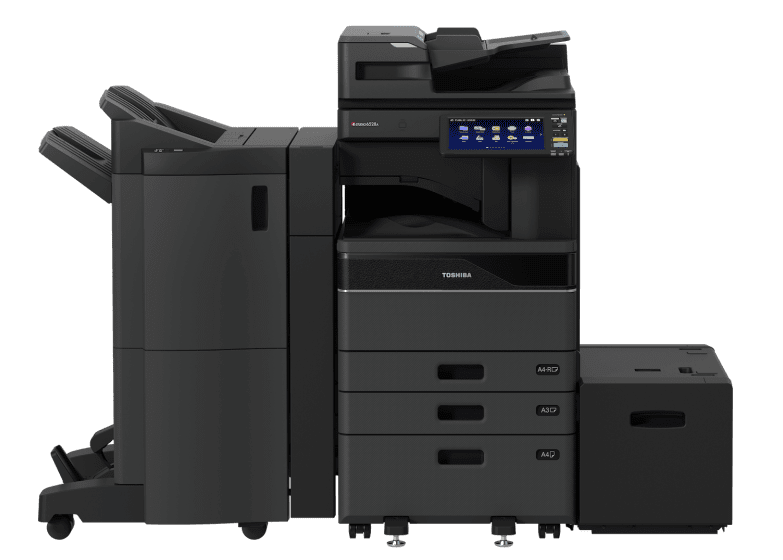

The Toshiba e-STUDIO 3528A is a 35ppm A3 mono multifunction photocopier, printer and colour scanner. This Toshiba 3528A photocopier combines 25ppm A3 output and a short first-copy response with optional 300-sheet single-pass scanning and compatible stapling, booklet making and hole punching. Available to buy, lease or rent from Camelott®, with UK-wide service and repair. The supplied photograph illustrates a Toshiba e-STUDIO 6528A mono-range configuration with optional external finishing and paper feeding equipment. It is used as a range illustration; your proposal identifies the exact 3528A configuration and compatible accessories supplied.
Camelott® 360° view
Toshiba 3528A: A Useful Step Up for Shared Mono Printing
The upgrade is useful when longer print runs, A3 work and short walk-up copies share one machine. The 3528A delivers 35ppm A4 and 25ppm A3 in black and white, with a published first mono copy of approximately 3.6 seconds. Colour scanning remains available even though printed output is mono.
A theoretical 200-page A4 engine run takes about 5 minutes 43 seconds, compared with eight minutes at 25ppm: around 2 minutes 17 seconds less. The A3 gain is also worth checking. A 100-page A3 run takes four minutes at 25ppm rather than 6 minutes 15 seconds at 16ppm. These are engine-time calculations; processing, first page, duplexing, stock and finishing add to the actual job.
Scanning does not become faster simply because the print engine is faster. The optional 300-sheet DSDF and its scan rating are shared with slower family models. Choose this speed for the printed workload, then specify the feeder and finishing for the work around it. For light A4-only use, a smaller machine may be more economical.
Click the part you want to understand
Explore the e-STUDIO 3528A Part by Part
Select an area to see the specification, what it means in practice, and when it will—or will not—make a meaningful difference.
1. Document feeder & scanning
Choose the Feeder for Your Files, Independently of 35ppm
The 3528A captures colour, greyscale or mono originals. Its feeder options are shared with slower family models.
Why this is useful
The DSDF captures both sides without reversing each sheet. Its capacity can reduce batch splitting for contracts, accounts records and substantial administration files. A version with double-feed detection is also available.
What to weigh up
A comparable 35ppm mono platform offers a 220-sheet single-pass feeder, so capacity can be a useful distinction for genuinely long files. It is not a universal speed or reliability advantage. Compare the supplied feeder, scan setting, OCR and time to receive a finished file.
2. Controls & workflow
Make Recurring Department Jobs Easier to Repeat
The 10.1-inch colour touchscreen and e-BRIDGE Next platform provide a consistent place to set up copying and scanning.
Why this is useful
A preset for duplex meeting papers, a routine scan folder or an agreed finishing task can reduce repeated setup. During installation, test the workflow with staff and a real document rather than relying on the screen size alone.
What to weigh up
A large colour screen is common in this class and does not mean colour printing. Confirm supported Microsoft or Google destinations, app availability, licences, permissions and any additional authentication equipment.
3. Print engine
35ppm A4 and 25ppm A3 for a More Varied Queue
The benefit includes stronger A3 output and a shorter first-copy figure than the 25ppm family model.
Why this is useful
A 200-page A4 engine run is around 2 minutes 17 seconds shorter than at 25ppm. A 100-page A3 engine run is around 2 minutes 15 seconds shorter than at 16ppm. Repeated reports and larger schedules make those gains more useful.
What to weigh up
For five A4 pages, the theoretical gain over 25ppm is only around three seconds. Low-power recovery is approximately 16 seconds versus 14 seconds on the slower model. First-copy timing is not PC-to-first-print timing. Test a representative complete job in the normal sleep state.
4. Bypass & specialist media
Run Occasional Forms Without Emptying a Main Drawer
The 100-sheet bypass keeps an occasional approved stock separate from the paper used for everyday reports. Marker 4 indicates the machine’s media-feed side; the large optional feeder in the range illustration is separate from the bypass.
Why this is useful
A different form, suitable cover or long mono notice can be handled without unloading both main stocks. This can help an office that mixes routine printing with occasional specialist documents.
What to weigh up
The 35ppm rating does not describe every size or stock. This model’s paper limit is 256gsm, and banners have separate conditions. Some alternatives accept 300gsm through specified paths; compare your exact stock and an output sample.
5. Main paper drawers
Keep the Paper Ready for the Faster Engine
Two 550-sheet main cassettes plus the 100-sheet bypass provide 1,200-sheet standard input.
Why this is useful
Keep A4 and A3 ready in separate drawers, or reserve one for a regular form stock. A full ream fits in each main drawer, helping staff replenish the machine without having to wait for a tray to be completely empty.
What to weigh up
Maximum capacity helps only if loading interrupts real jobs. It does not increase output speed or remove collection and finishing work. The 1,200-sheet standard total includes the bypass; the two main drawers hold 1,100 sheets together.
6. Output & finishing
Make Ready-to-Use Sets, Not Just a Faster Stack
The range illustration shows an optional external finisher on the left. This is an illustrated 6528A configuration, rather than the standard 3528A package. Compatible finishing for the 3528A can remove repeated assembly after printing; confirm the accessory combination supplied.
Why this is useful
An inner stapler can suit repeated meeting packs while using less space than an external finishing unit. A saddle-stitch finisher prepares folded, centre-stapled guides; a compatible punch prepares binder sets. Select the finished document you need.
What to weigh up
A corner staple does not make a booklet. Confirm sheet counts, paper weights, covers, punch pattern, bridge equipment and installed space. Maximum print-media weight is separate from stapling and folding limits. Occasional short packs may need only a desktop stapler.
Photocopier terminology, explained by Bean
Confused by Photocopier Jargon?
Bean explains the terms without the technical waffle. Here is what the specifications mean for your working day.

- PPM — Pages Per Minute
- Printer PPM measures pages produced per minute once the print engine is running, under specified test conditions. The difference between 25ppm and 45ppm matters much more on a 100-page job than a five-page job, where processing and the first page account for more of the wait.
- IPM — Images Per Minute
- Scanner IPM normally measures scanned sides, not sheets. One double-sided sheet counts as two images. A high figure helps with large scan batches, but resolution, OCR, file processing and upload speed can still slow the complete job.
- GSM — Grams Per Square Metre
- GSM describes paper weight per square metre; ordinary office paper is often 80gsm. This model supports up to 256gsm through the stated paper paths. That can help with approved covers, but adds little if you use only ordinary paper. Check size, feed method and finishing limits separately.
- MFP — Multifunction Printer
- One device combines printing, copying and scanning; fax may be optional. Sharing an MFP saves space, but a busy scan or copy session can create a queue, so consider how many people need it at once.
- ADF — Automatic Document Feeder
- An ADF feeds a stack of originals into the scanner, saving you from placing every page on the glass. Capacity matters for long batches. ADF alone does not tell you whether both sides are scanned automatically; check the feeder type.
- DSDF — Dual Scan Document Feeder
- A DSDF scans both sides of an original in one pass, without turning the sheet over. It is especially useful for large double-sided document packs. On the 3528A, the 300-sheet DSDF is an option, so check that it is included.
- RADF — Reversing Automatic Document Feeder
- A RADF scans one side and reverses the sheet to scan the other. It still handles double-sided originals automatically, but the reversing step makes it slower than a dual-scan feeder. It can be quite sufficient for occasional smaller batches.
- DADF — Duplexing Automatic Document Feeder
- DADF describes an automatic feeder that handles double-sided originals. Check whether the actual configuration scans both sides in one pass or reverses each sheet: the mechanism, scan speed and capacity matter more than the initials. A standard single-pass feeder can offer good value when it handles your normal batches without an upgrade.
- Duplex — Automatic Double-sided Printing
- Automatic duplex prints on both sides without manually reloading the paper. It saves paper and reduces bulky packs. It does not mean double-sided scanning, and supported paper weights can be lower than for single-sided printing.
- DPI — Dots Per Inch
- DPI describes resolution: how many dots are printed, or how finely a scan samples detail, per inch. Higher settings can help fine text and images, but scanning at higher resolution creates larger files and can slow the workflow. Match the setting to the task.
- CPC — Cost Per Copy
- CPC is the charge per copy or printed page under a service arrangement. This machine prints mono; colour scan capture is a different function. Ask what is included, how A3 and double-sided pages are counted, and whether minimum billing applies. Compare the rates against your actual usage.
- FCOT — First Copy Out Time
- FCOT is the time to produce the first copy under the manufacturer’s test conditions. It is not PC-to-first-printed-page time: a PC print job can also involve the computer, application, driver, network, server or cloud, copier processing and print engine. Sleep state can add a further wait.
- A4 / A3 — Paper Sizes
- A4 is 210 × 297mm, the usual office page. A3 is 297 × 420mm, twice the area of A4, useful for plans, larger spreadsheets and folded A4 booklets with suitable finishing. If you never use A3, a smaller A4 device may suit a lighter workload, but check paper capacity, sustained use and any finishing attachments you may need later.
- Booklet Maker — Folded, Stapled Booklets
- A booklet maker folds sheets down the middle and staples along the fold to produce a finished booklet. With suitable paper and finishing, A3 sheets become an A4 booklet and A4 sheets become an A5 booklet. Useful for handbooks, programmes and training guides. It is a separate finishing requirement from corner stapling: check that the compatible booklet finisher is included and that its sheet and paper-weight limits suit your documents.
- Hole Punch — Pages Ready for Binders
- A compatible hole-punch option makes holes in printed sheets so packs are ready for folders or ring binders, saving staff from punching each batch by hand. Check the hole pattern, supported paper sizes and weights, and the required finisher combination. If you regularly prepare binder packs—or expect to later—choose a machine that accepts the necessary attachment.
- Corner Staple — Keep Each Set Together
- Corner stapling puts a staple near the corner of each printed set, keeping meeting papers, reports and teaching packs together. It can save time when you repeatedly produce multiple sets; for an occasional short document, a separate stapler may be sufficient. Check the compatible finisher’s sheet limit and staple positions. Corner stapling does not fold pages or make a booklet.
Specifications in real life
What the 3528A Figures Change in Practice
Useful when: Repeated reports or multiple sets occupy a shared printer.
Keep it in perspective: 200 A4 pages take about 5 minutes 43 seconds of theoretical engine time. Processing, first page, paper and finishing add to the job.
Useful when: Larger schedules and spreadsheets are a recurring part of the workload.
Keep it in perspective: 100 A3 pages take four minutes of engine time. The 35ppm A4 figure does not apply to A3.
Useful when: Staff make short walk-up copies between longer jobs.
Keep it in perspective: Around 0.7 seconds shorter than the 25ppm family model’s listed figure. Sleep recovery and PC printing are separate timings.
Useful when: Substantial original files would otherwise need several feeder loads.
Keep it in perspective: This is an optional feeder, not a standard feature. The scan rating is unchanged from slower family models.
Useful when: A4 and A3 or recurring stocks should stay ready.
Keep it in perspective: Includes the 100-sheet bypass. The main drawers hold 550 sheets each; maximum capacity requires options.
Useful when: Approved heavier forms or covers are used alongside ordinary paper.
Keep it in perspective: Banner and finishing limits are separate. Do not assume a 300gsm rating from a different family member.
Choose around the work
Where the 3528A Could Earn Its Place
Give the next user access sooner
A recurring 200-page A4 run takes about 5 minutes 43 seconds of theoretical engine time at 35ppm, rather than eight minutes at 25ppm. That saving matters when several people share the device; it matters less for an occasional long report.
A larger-format gain worth checking separately
A3 output rises to 25ppm from 16ppm on the slower family model. For 100 A3 pages, theoretical engine time falls from 6 minutes 15 seconds to four minutes. Plans, schedules and larger spreadsheets can therefore benefit independently of the A4 upgrade.
Short copying also gets a quicker start
The published first mono copy is approximately 3.6 seconds, compared with 4.3 seconds on the lower-speed family model. That can help short walk-up work. Do not add this figure to every PC print estimate or assume faster recovery: low-power recovery is around 16 seconds.
Spend on document capture rather than unused print speed
The optional 300-sheet DSDF remains rated up to 240ipm duplex at 300dpi, as on slower family models. If scanning dominates, choose the supplied feeder, OCR and destination workflow first. A lower-speed engine may offer the better complete cost.
Compare feeder capacity as well as the scan headline
The 300-sheet option can take longer files in one load than a comparable 220-sheet single-pass configuration. That advantage appears only when originals exceed the smaller capacity. It does not prove fewer jams or faster delivery of every scan.
Remove the handling after the run
An inner finisher can automatically staple recurring meeting packs without the floor space of a large external unit. Check actual pack sizes and stock. If staff staple only a few short documents, a separate stapler may be sufficient.
Keep the right finishing path available
Handbooks need folded and centre-stapled booklet finishing; binder packs may need punching; ordinary reports may need only corner staples. These are different functions. Choose compatible attachments around current and likely future work.
Balance speed with loading and collection
Two main drawers keep common sizes or stocks ready, while the base output tray holds up to 550 sheets under stated conditions. Additional input alone does not make every long run unattended. Plan how people load, collect and separate the finished sets.
Look beyond a small first-copy difference
A comparable 35ppm mono platform lists a 3.8-second first copy, close to this model’s 3.6-second figure. Such a small difference is rarely the whole buying case. Compare the feeder, finishing, real document time, service and complete cost.
Keep the equipment matched to the work
The 3528A supports up to 256gsm through its stated paper paths. Some alternatives accept heavier stock or offer different folding options. For light A4-only work, a compact machine may save space and equipment cost; for growing A3 or finishing needs, plan the attachment path now.
Who should choose it?
The 3528A Is a Good Fit When...
It makes sense if you...
- Print mainly mono reports, forms and repeated document sets
- Have shared queues that benefit from 35ppm A4 output
- Use A3 schedules, plans or spreadsheets regularly
- Need colour scanning while keeping printed output mono
- Can justify the optional feeder for genuine large files
- Want compatible stapling, booklets or punching now or later
- Can match the configuration and support to actual monthly and peak use
We would compare another option if you...
- Need colour printed documents rather than only colour scanning
- Have light A4-only work and no inline finishing needs
- Expect faster scanning simply from choosing a faster print engine
- Need 300gsm output through a particular paper path
- Have sustained long runs that still leave a queue at 35ppm
- Assume feeder, extra paper capacity or finishers are standard
- Cannot accommodate the installed accessories and working access
Equipment and support around your business
Buy, Lease or Rent the 3528A with UK-wide Service & Repair
Choose how you obtain the machine, then agree the support that keeps it useful in your workplace. We explain equipment costs and service terms separately.
Purchase the configuration you need
Buy a Toshiba e-STUDIO 3528A outright, with the feeder, paper capacity and finishing selected for your work. Ask about available new and professionally prepared used equipment, the supplied condition, warranty and service options.
Spread the equipment cost
A lease can spread the equipment cost over an agreed term. We explain the payments, term and end-of-agreement arrangements, with service charges shown separately. Finance is subject to the provider’s approval and agreed terms.
Discuss a rental for your circumstances
Rent the 3528A where the available equipment and rental arrangement suit your requirements. Tell us the intended period, location, expected use and finishing needs so we can confirm availability, delivery, collection and the applicable terms.
Support beyond supplying the machine
Camelott® offers photocopier servicing and repair across the UK, including support for the Toshiba e-STUDIO 3528A. Tell us your postcode and whether you need ongoing maintenance or help with a fault. We will confirm the service available, charges, inclusions and attendance arrangements for your location.
Choosing your configuration
What to Check Before Choosing a Toshiba 3528A
Which feeder fits your files?
Compare the 100-sheet RADF, 300-sheet DSDF and double-feed detection version. Confirm which is priced and installed.
New or professionally prepared used?
Compare age, meter readings, condition, warranty, availability and expected service life alongside the equipment cost.
Which finishing task repeats?
Corner staples, centre-stapled booklets and punched binder sets need different compatible functions. Check likely future needs.
Which paper should stay loaded?
Specify the normal sizes, approved stocks and busy-day batch size. Extra input capacity should solve a real loading problem.
What does mono service cost?
Apply the proposed CPC rate to actual monthly pages. Confirm A3 and duplex counting, toner, parts, labour and exclusions.
Does minimum billing apply?
Check minimum charges and any included-volume arrangement explicitly. Compare the complete proposal against your actual use.
Which finance or rental term fits?
Agree duration, payments and end arrangements alongside equipment condition and intended use. Availability and terms are confirmed in the proposal.
What must scanning connect to?
Agree email, folders or supported cloud destinations, OCR needs, licences, permissions and training. Test a representative file.
The details worth checking
Toshiba e-STUDIO 3528A Specifications
| Feature | Specification | What to check |
|---|---|---|
| A4 print / copy | Up to 35ppm mono | Colour scanning is supported; colour printing is not. |
| A3 print / copy | Up to 25ppm mono | Different from the A4 headline rate. |
| First mono copy | Approximately 3.6 seconds | Manufacturer test; not PC-to-first-print time. |
| Low-power recovery | Approximately 16 seconds | Separate from approximately 20-second power-on warm-up. |
| Optional RADF | 100 sheets; up to 73ipm at 300dpi | Reverses originals for double-sided capture. |
| Optional DSDF | 300 sheets; up to 240ipm duplex at 300dpi | Single-pass; double-feed detection variant available. |
| Standard input | 1,200 sheets | Two 550-sheet drawers plus 100-sheet bypass. |
| Maximum input | 5,200 sheets | Requires compatible optional feeding equipment. |
| Main cassettes | A5R–A3; 60–256gsm | Supported stock and tray settings apply. |
| Bypass | 100 × 148mm–A3; up to 256gsm | 52gsm minimum single feed; 60gsm minimum multi-feed. |
| Banner media | Up to 305 × 1,200mm; 90–163gsm | Separate banner size and weight limits. |
| Automatic duplex | A5R–A3; 60–256gsm | Duplex printing and duplex scanning are different functions. |
| Print resolution | 600 × 600 dpi; 1200 × 1200 dpi mode | 1200 × 1200 dpi mode requires a compatible PostScript driver and setting; enhanced equivalent figures are separate. |
| Scan resolution | Up to 600 × 600 dpi | The maximum scan-rate test uses 300dpi. |
| Panel / platform | 10.1-inch colour touchscreen; e-BRIDGE Next | Compatible apps and workflow setup may require licences. |
| RAM / storage | 4GB / 128GB security SSD | Available storage is less than nominal capacity. |
| Connectivity | Gigabit Ethernet and USB 2.0 | WLAN, Bluetooth and Wi-Fi Direct require appropriate options. |
| Base dimensions | 585 × 586 × 787mm (W × D × H) | Feeder, stand, extra drawers and finishing add installed space. |
| Base weight | Approximately 57kg | Excludes optional equipment. |
| Base output | 550 sheets | Finisher output capacities are separate. |
| Finishing | Inner or external stapling; saddle stitch; punch options | Accessory compatibility, bridges, paper limits and availability apply. |
| Print colour | Black and white | Colour, greyscale and mono scan modes are separate. |
Sources: Toshiba UK series brochure, Toshiba European model specifications and Toshiba accessory specification. UK/European paper specifications are used; overseas accessory documents may use Letter ratings. Confirm the UK configuration. Capacities depend on paper and conditions.
Comparison context: published same-speed mono specifications and published alternative paper paths. Compare matching configurations and conditions rather than treating one figure as overall superiority.
Questions worth asking
Toshiba 3528A Photocopier FAQ
Can I buy, lease or rent the Toshiba 3528A?
Yes. Camelott® offers purchase, lease and rental options. Tell us your location, intended period, workload and required configuration so availability, condition and terms can be confirmed.
Do you offer UK-wide service and repair?
Yes. Camelott® offers photocopier servicing and repair across the UK. Give us your postcode and machine details so we can confirm coverage, charges, inclusions and attendance arrangements.
Does the 3528A print in colour?
No. It prints and copies in black and white. Its scanner can capture colour originals to digital files.
How fast is the 3528A?
Up to 35ppm A4 and 25ppm A3 in mono. The first mono copy is approximately 3.6 seconds under the manufacturer’s conditions. A complete PC print job also involves processing, network transfer and the normal sleep state.
What improves over the slower family model?
The gains include sustained A4 output, A3 output and the published first-copy figure. The optional feeder choices and headline scan rating are shared. Low-power recovery is approximately 16 seconds rather than 14 seconds.
Is the 300-sheet feeder included?
It is optional. A 100-sheet RADF, 300-sheet DSDF and DSDF with double-feed detection are offered. Check which feeder is included in the actual price.
Can it scan both sides in one pass?
Yes, with the optional DSDF. The RADF scans one side and reverses the sheet for the other. Choose according to original batches, required resolution and complete file workflow.
Does 35ppm mean faster scanning?
No. Printing speed and scanning speed are separate. The optional DSDF is rated up to 240ipm duplex at 300dpi; file processing, OCR and transfer can affect the time to receive the document.
Can it use 300gsm paper?
The published UK/European limit for the 3528A is 256gsm through its stated paper paths. Bypass feed methods, banners and finishing have their own conditions. Do not apply the higher-speed family’s 300gsm specification to this model.
Can it make booklets, corner-staple or hole-punch?
Compatible finishing options provide these functions, but they are not all performed by the same basic attachment. Booklets require saddle-stitch finishing; punching needs the appropriate punch and finisher. Confirm paper, sheet limits and installed space.
Would an A4 machine be sufficient?
Possibly, for light A4-only printing with little finishing. Compare the scanner, paper capacity, supported workload and future booklet or punch needs. An A3 platform may earn its place through those handling options even when most pages are A4.
Should I choose an even faster machine?
Repeated long A4 runs may justify more speed. In this family the next 45ppm model has the same listed 25ppm A3 output and 3.6-second first-copy figure, so choose around the actual job mix rather than expecting every function to improve.
How much paper does it hold?
Standard input is 1,200 sheets: two 550-sheet main drawers plus a 100-sheet bypass. Up to 5,200 sheets requires compatible optional feeding equipment.
Can it work with Microsoft, Google and OCR workflows?
Compatible software can support document workflows. Confirm the required OCR functions, current app availability, supported destinations, licences, permissions and installation scope using a representative file.
What affects purchase, lease or rental cost?
Equipment condition, feeder, paper options, finishing, software, delivery, finance term or rental period and support affect the proposal. Ask for equipment and service costs separately, including CPC rates, any minimum charges and the agreed cover.
Interested in the 3528A?
Talk to Camelott® About the Toshiba 3528A
Buy, lease or rent the Toshiba e-STUDIO 3528A from Camelott®, with UK-wide service and repair support. Tell us your postcode, preferred arrangement and how your team prints and scans. We will recommend a suitable configuration and explain equipment, delivery and service costs clearly.